
An advanced Xposed / LSPosed / LSPatch module for Swift Backup that unlocks Premium features, enables cloud backups for local accounts, and supports isolated personal Firebase backends.




-f59e0b?style=for-the-badge&logo=android)


- Features
- How it Works
- Compatibility & Prerequisites
- Installation & Activation
- Choosing Your Cloud Workflow
- Local Account Cloud Features Guide
- Custom Firebase Setup Guide
- Migrating & Accessing Backups from Default Firebase
- Backup Migration
- LSPatch Rootless Integration & In-App Settings
- Configuration Export & Migration
- Building from Source
- Community & Support
- Frequently Asked Questions (FAQ)
- Credits & Acknowledgements
- License & Disclaimer
- Unlocks Premium Features: Unlocks all Swift Backup Premium features (batch operations, scheduling, cloud backups, app data backup/restore, custom folder backups) without requiring Google Play Store licensing checks.
- Privacy & Telemetry Suppression: Blocks Firebase Analytics, Crashlytics, Sessions, Installations, and Google DataTransport calls to keep your backup operations private.
- Root & Rootless Environments: Works in rooted environments (Magisk, KernelSU, APatch with LSPosed or Vector) and non-rooted environments via JingMatrix/LSPatch.
- Local Account Cloud Features (Zero-Firebase Mode): Enables cloud backup creation, cloud file uploads, and cloud backup restores for offline/local accounts without requiring a Google account or Firebase project. Intercepts Realtime Database calls to persist catalog metadata locally and to cloud providers directly, with optional Custom Encryption UID for backups.
- Universal Cloud Discovery & Snapshot Injection: Multi-cloud scanner (Google Drive, Microsoft OneDrive, Dropbox, Box, pCloud, Amazon S3, WebDAV / Nextcloud / ownCloud) that discovers cloud backups without prior database records, injecting synthetic Firebase
DataSnapshotobjects directly into Swift Backup's native restore screens. - Fast-Path Remote Discovery & Cloud Cache: Caches catalog metadata locally for instant offline navigation across restore screens, and synchronizes canonical cache files to cloud remotes for instant discovery on new devices.
- Remote APK Manifest Parsing via HTTP Range Requests: Uses
ApkRangeManifestParserfor cloud discovered backups to fetch only the remote APK ZIP Central Directory and parseAndroidManifest.xmlvia HTTP byte ranges in seconds, displaying exact app labels, package names, and version codes without downloading gigabytes of data. - Google Drive Full OAuth Scope Expansion: Upgrades runtime OAuth scopes from restricted
drive.fileto fulldriveaccess so Swift Backup can query and restore backups uploaded from other devices or Swift Backup accounts on different Firebase projects. - Local Backup Migrator & Re-encryptor: On-device cryptographic engine to decrypt archives, repair missing metadata, switch encryption keys (Shared Anonymous Key vs Custom Firebase UID), or export unencrypted portable archives (
.apk,.tar.gz,.json).
- Modern Material 3 UI: Clean user interface built with Jetpack Compose, Material 3 guidelines, dynamic color adaptation, and edge-to-edge support.
- Android TV / Leanback Support: Features a custom Leanback banner, native D-pad focus traversal, and big-screen friendly layouts for Android TV devices.
- In-App Settings Integration: When running in LSPatch Integrated Mode, module settings inject natively into Swift Backup's settings menu (Settings → SwiftBackupPrem).
- Guided Setup & 1-Tap Helpers: In-app Setup Wizard with clipboard helpers (Package Name, SHA-1 signing fingerprint) and one-tap import for
google-services.jsonfiles. - Configuration Export & Import: Export your active configuration to
sbp_config.jsonand restore it instantly on fresh ROM installs or secondary devices. - Quick Process Controls: One-tap Root Force Stop and Launch shortcuts directly within the app.
- Dynamic DexKit Bytecode Scanning: Utilizes DexKit to dynamically locate obfuscated classes, methods, and fields at runtime across versions, ensuring robust compatibility with newer app releases without requiring fragile hardcoded ProGuard symbols.
- Native JNI Protection: Leverages a companion C native library (
libnativelib.so) to interceptJNI_OnLoadcalls, ensuring 16 KB kernel page-size alignment for Android 15+ devices.
| Requirement | Details |
|---|---|
| Root Solution | Magisk, KernelSU, or APatch |
| Rootless Solution | LSPatch (Recommended: JingMatrix fork; supports both Manager Mode and Integrated Mode) |
| Xposed / Hook Framework | Modern LibXposed (API 101 / 102+) compatible frameworks: • LSPosed (v2.0.0+) • Vector • LSPosed variants (LSPosed-Irena, etc.) • LSPatch (rootless loader; JingMatrix recommended) |
| Legacy Xposed Support | Available as the legacy build variant (SwiftBackupPrem_${version}-legacy-release.apk) for older Xposed frameworks (API 82–93 / EdXposed / classic LSPosed <= 1.11) |
| Android Version | Android 8.1 (API 27) up to Android 17 (API 37+) |
| Form Factors | Phones, Tablets, Foldables, and Android TV (Leanback) |
| Target Application | Swift Backup (org.swiftapps.swiftbackup) |
| Supported App Versions | v4.0.0 (525) through v5.0.8 (603), v5.1.0 (620), and newer releases |
Automatically download and receive updates by adding SwiftBackupPrem to Obtainium:

Or add the repository URL manually in Obtainium:
https://github.com/s1ddhants1/SwiftBackupPrem
- Download the latest APK from the Releases page.
- Install the APK on your device.
- Open LSPosed Manager (or your active LibXposed framework manager).
- Navigate to the Modules tab and tap SwiftBackupPrem.
- Toggle Enable module.
- Ensure the scope includes Swift Backup (
org.swiftapps.swiftbackup). - Force stop Swift Backup or reboot your device.
- Open SwiftBackupPrem to configure your preferred cloud mode (see Choosing Your Cloud Workflow).
SwiftBackupPrem fully supports rootless installation via LSPatch:
- Manager Mode:
- Patch Swift Backup with LSPatch in Manager Mode.
- Install SwiftBackupPrem APK as a separate companion application.
- Enable SwiftBackupPrem in LSPatch Manager under Swift Backup's module list.
- Integrated Mode (Standalone APK):
- Patch Swift Backup with LSPatch in Integrated Mode, selecting the SwiftBackupPrem APK as an embedded module.
- Install the patched Swift Backup APK.
- Module settings will appear natively inside Swift Backup under Settings → SwiftBackupPrem! (No manager app required).
SwiftBackupPrem includes native Android TV metadata:
- Sideload the APK onto your Android TV or Google TV box via ADB or a file manager.
- The app appears directly on your Leanback home screen launcher with a dedicated banner.
- All interface controls, tabs, and buttons are navigable via the standard D-pad remote control.
SwiftBackupPrem provides two ways to manage cloud backups. Pick the workflow that fits your needs:
-
Workflow A: Local Account Cloud Features
Use Swift Backup with a Local Account (no Google Sign-In). Enables full cloud backup creation, file uploads, and restores across any supported provider (WebDAV, Nextcloud, S3, OneDrive, Google Drive, etc.) with zero Firebase or Google Cloud setup. -
Workflow B: Custom Firebase Backend
Connect your own personal Firebase project to sign in with your Google Account. Ideal if you want backups linked to your Google identity and want metadata persisted to your private Realtime Database.
Swift Backup normally restricts cloud storage and cloud backups to users signed in with a Google account via Firebase. Selecting "Local Account" disables cloud access.
Local Account Cloud Features completely removes this restriction, enabling full cloud backup creation, cloud file uploads, and cloud backup restores for offline and local accounts.
- Open Swift Backup and choose Local Account (skip Google Sign-In).
- Open SwiftBackupPrem and toggle on Local Account Cloud Features.
- (Optional) Under Encryption Key, select Shared Anonymous Key (offline-restorable on any device) or Custom Key (enter any custom UID).
- Return to Swift Backup > Settings > Cloud Storage and configure your cloud provider (WebDAV, Nextcloud, OneDrive, Dropbox, Box, pCloud, S3, or Google Drive).
- Perform backups, view cloud sync, and restore directly!
- Identity Spoofing:
LocalCloudUnlockHooktransparently interceptsisAnonymous()calls during cloud operations, making Swift Backup recognize the local user as fully authorized. - Database Virtualization:
CloudDatabaseManagervirtualizes Firebase Realtime Database reads and writes in memory and keeps a canonical cache at/sdcard/SwiftBackup/cloud_discovered_cache.json. - Direct Cloud Uploads: Application metadata manifests are automatically written and synchronized directly to your connected cloud storage remotes.
- Dialog Suppression:
FirebaseConnectionWatcherintercepts backend connectivity loops and suppresses network error dialogs.
Swift Backup encrypts backup data using Facebook Conceal (AES-256-GCM) keyed to the account UID:
- Shared Anonymous Key (
d58b0944415a4889d7f11aa95fbeca50): Standard anonymous key that stores backups under account folder hash8690a48a4fcc72f1. These backups can be restored offline on any device running Swift Backup. - Custom Key: Enter a custom string or UID. The hook sets your custom UID into memory so that encryption key derivation (
deriveConcealKey) and directory hashes (computeAccountHash) match your private key.
By default, Swift Backup authenticates against the app developer's Firebase project. If the developer blocks or bans your account on their Firebase instance, access to the account will be revoked, and you will not be able to restore your backups.
Connecting your own personal Firebase project gives you complete isolation, ensures data privacy, and prevents remote bans.
- Go to the Firebase Console.
- Click Add project (or Create a project).
- Enter a project name (e.g.,
SwiftBackup-Personal) and continue. - Google Analytics can be disabled (optional) to speed up creation.
- Click Create project and wait for provisioning to finish.
View Step 1 Screenshots
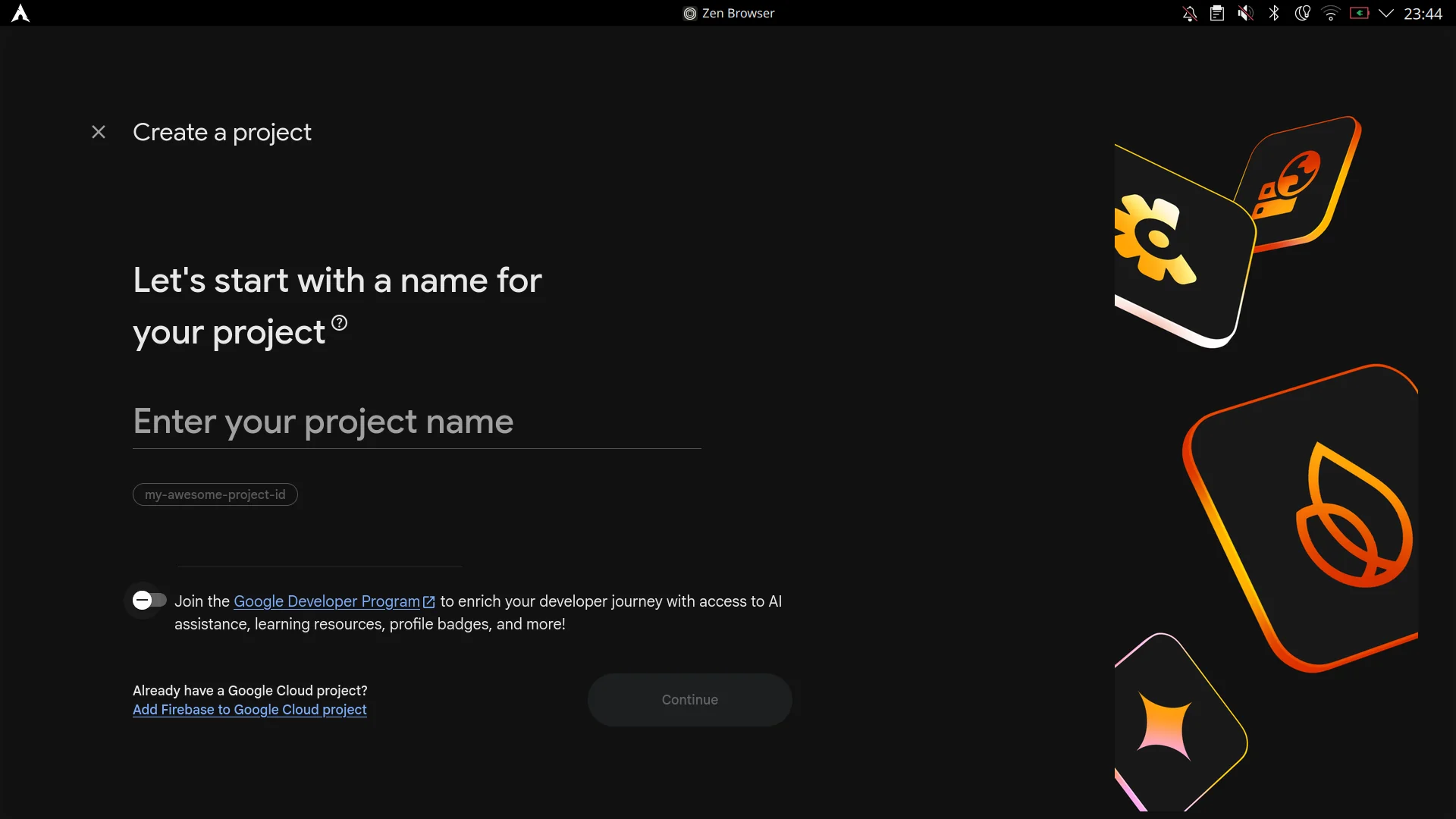
1. Enter project name
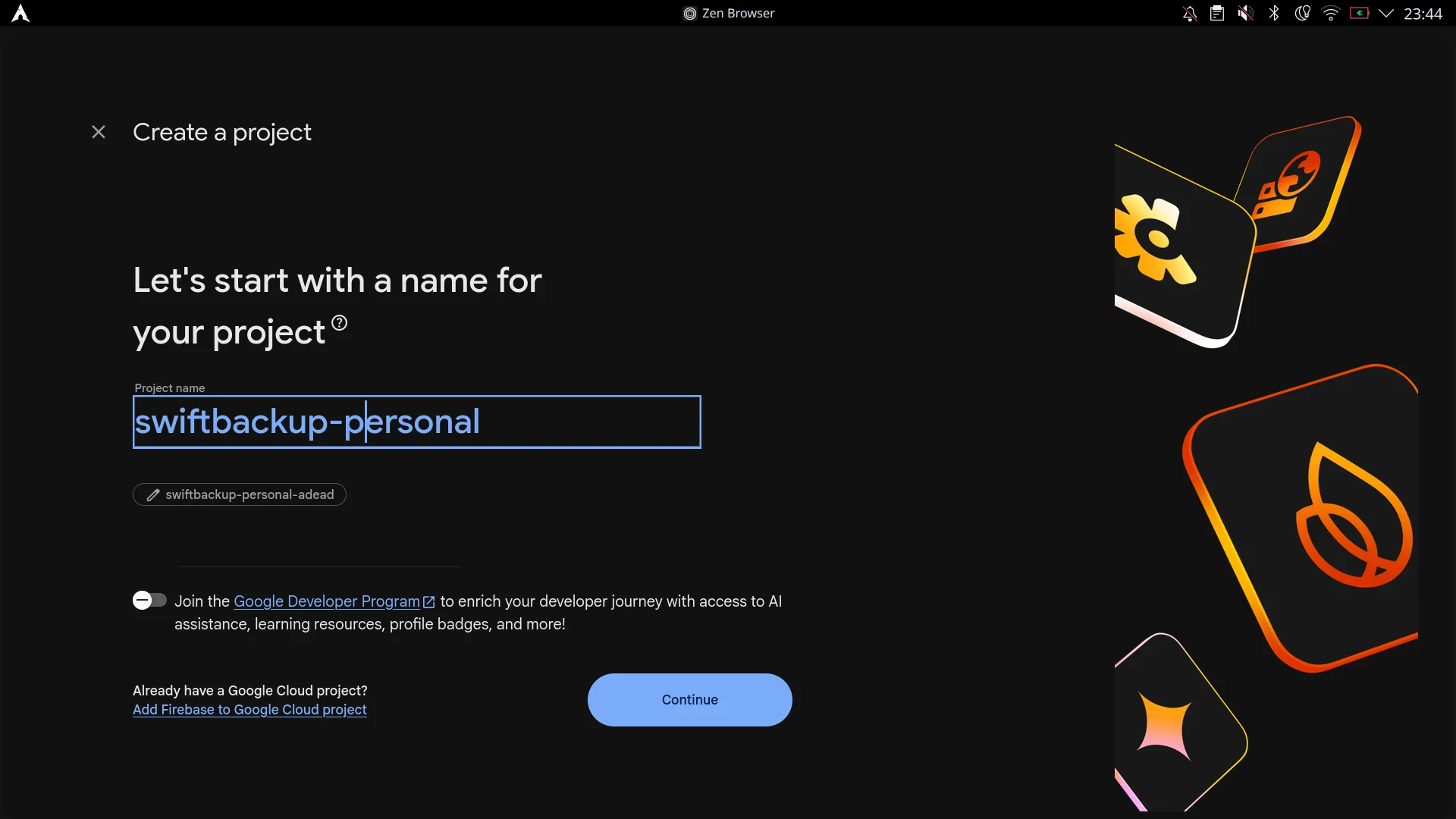
2. Confirm project name
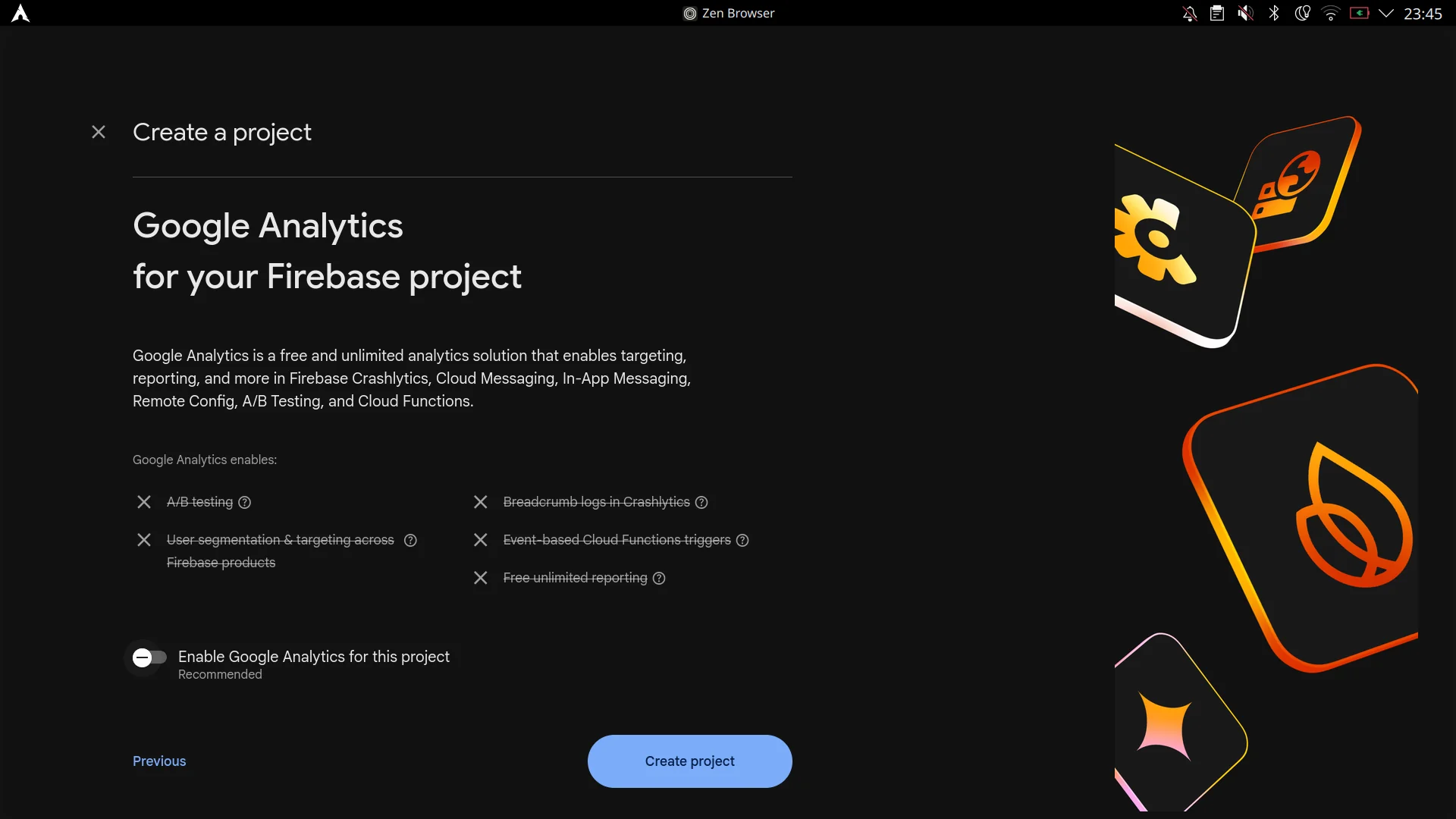
3. Configure Analytics and click Create project
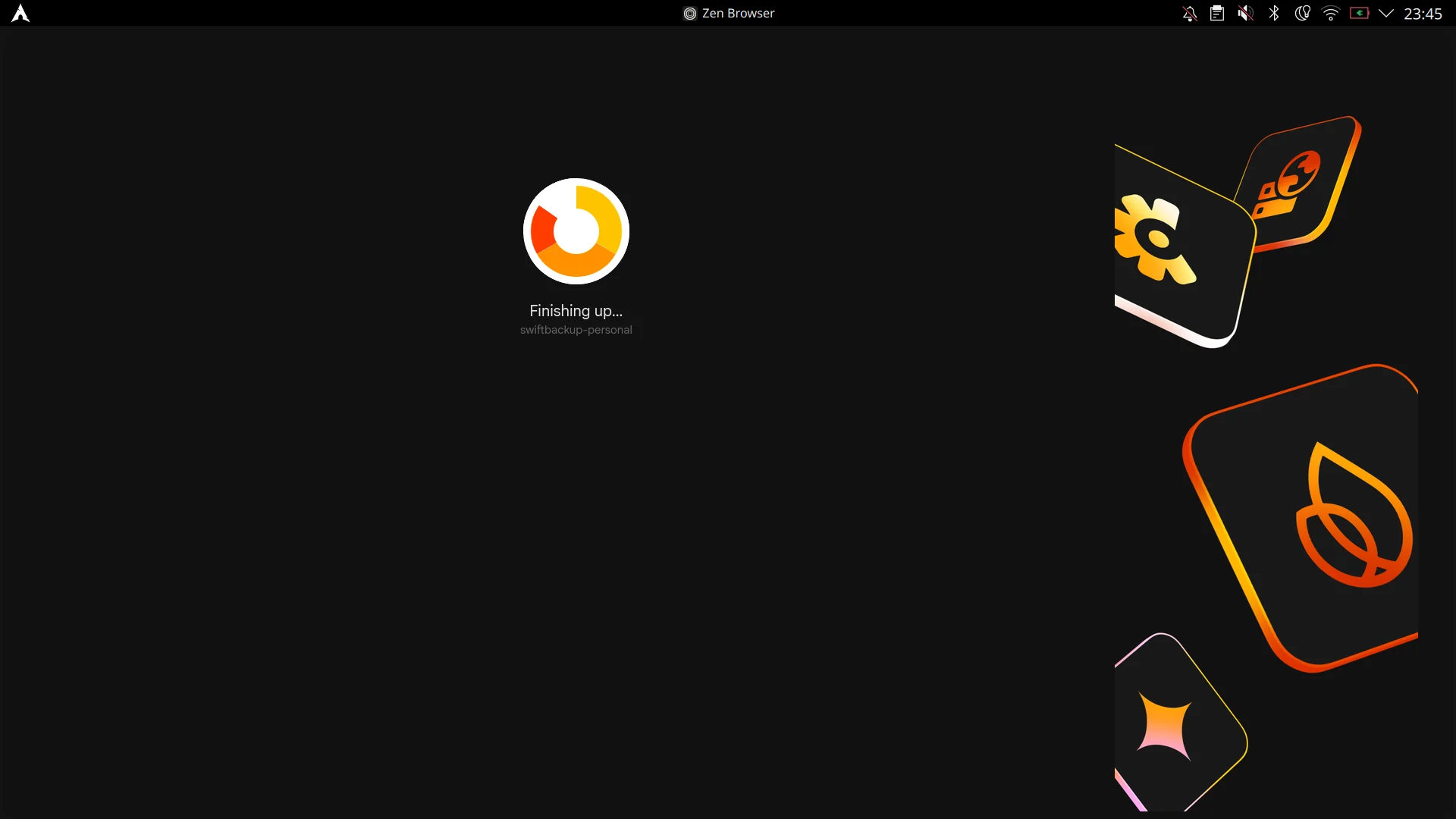
4. Provisioning Firebase project
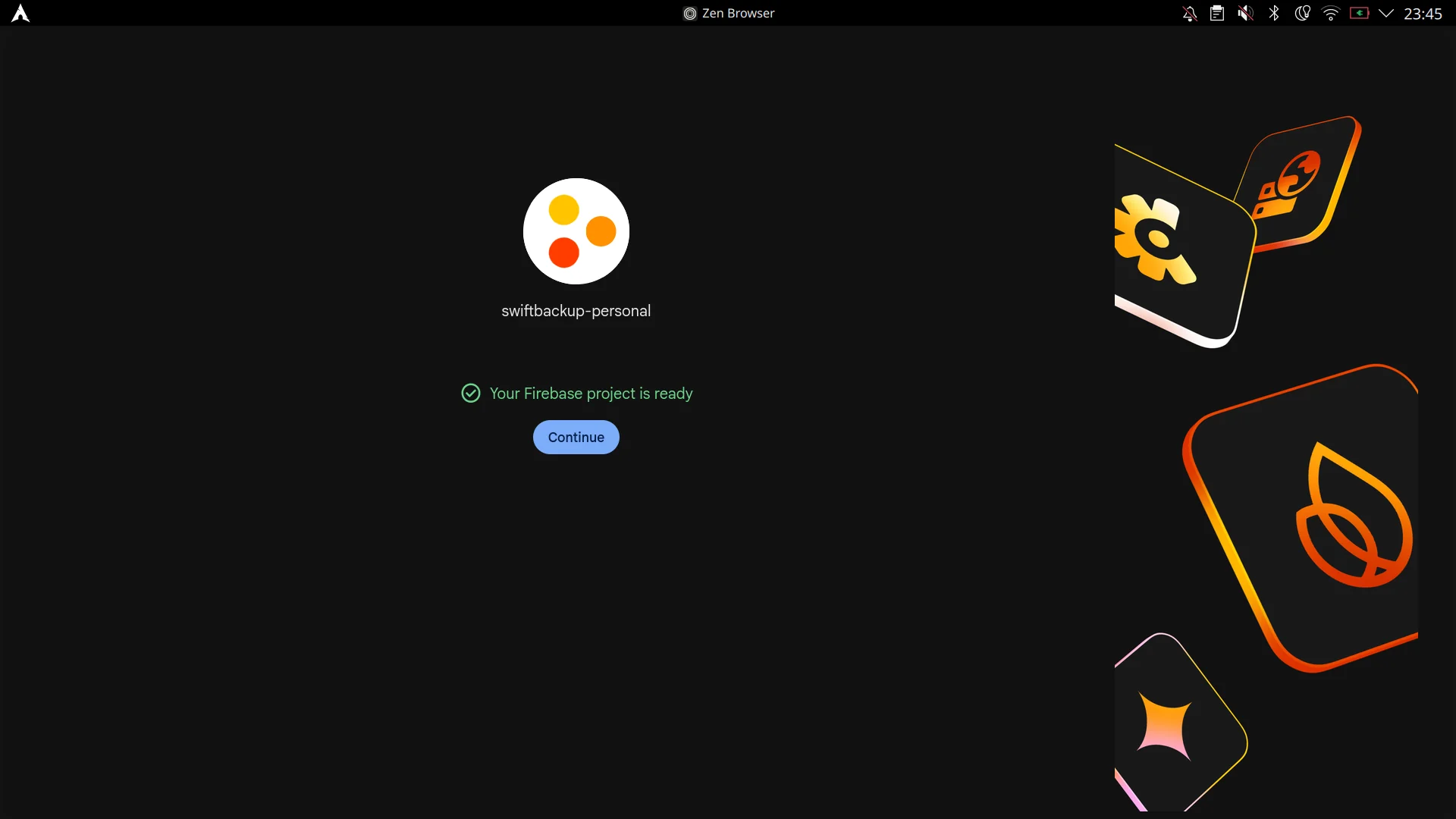
5. Project is ready
- In your Firebase project sidebar, go to Databases & Storage > Realtime Database.
- Click Create Database, select a region close to you (e.g.,
United StatesorBelgium), and choose Start in locked mode. - Once created, switch to the Rules tab at the top.
- Replace the existing rules with the following user-isolated security rules:
{
  "rules": {
    "users": {
      "$uid": {
        ".read": "$uid === auth.uid",
        ".write": "$uid === auth.uid"
      }
    }
  }
}- Click Publish to save the rules.
- Copy your Realtime Database URL from the Data tab (e.g.,
https://your-project-id-default-rtdb.firebaseio.com/).
View Step 2 Screenshots
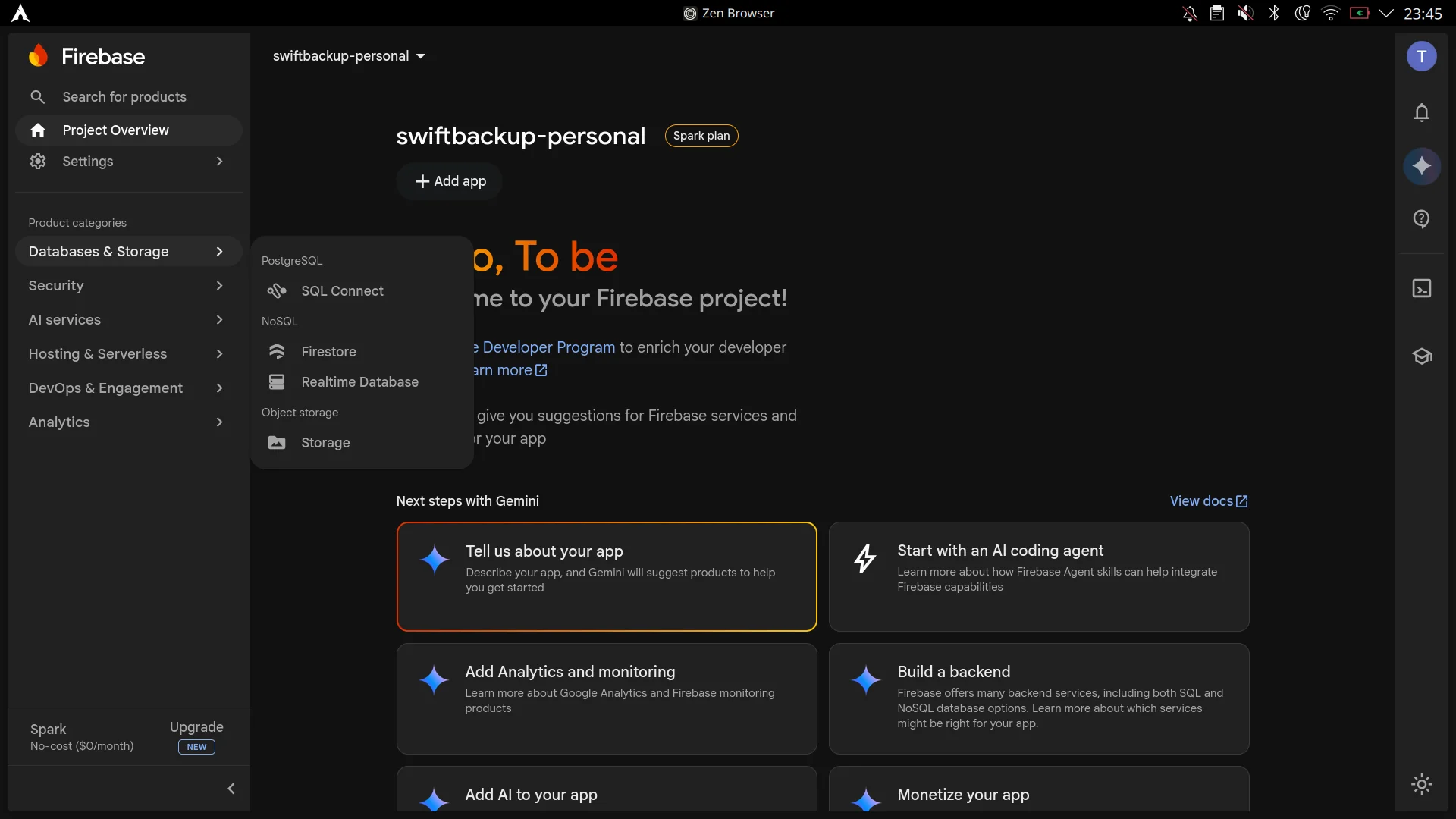
1. Select Databases & Storage > Realtime Database
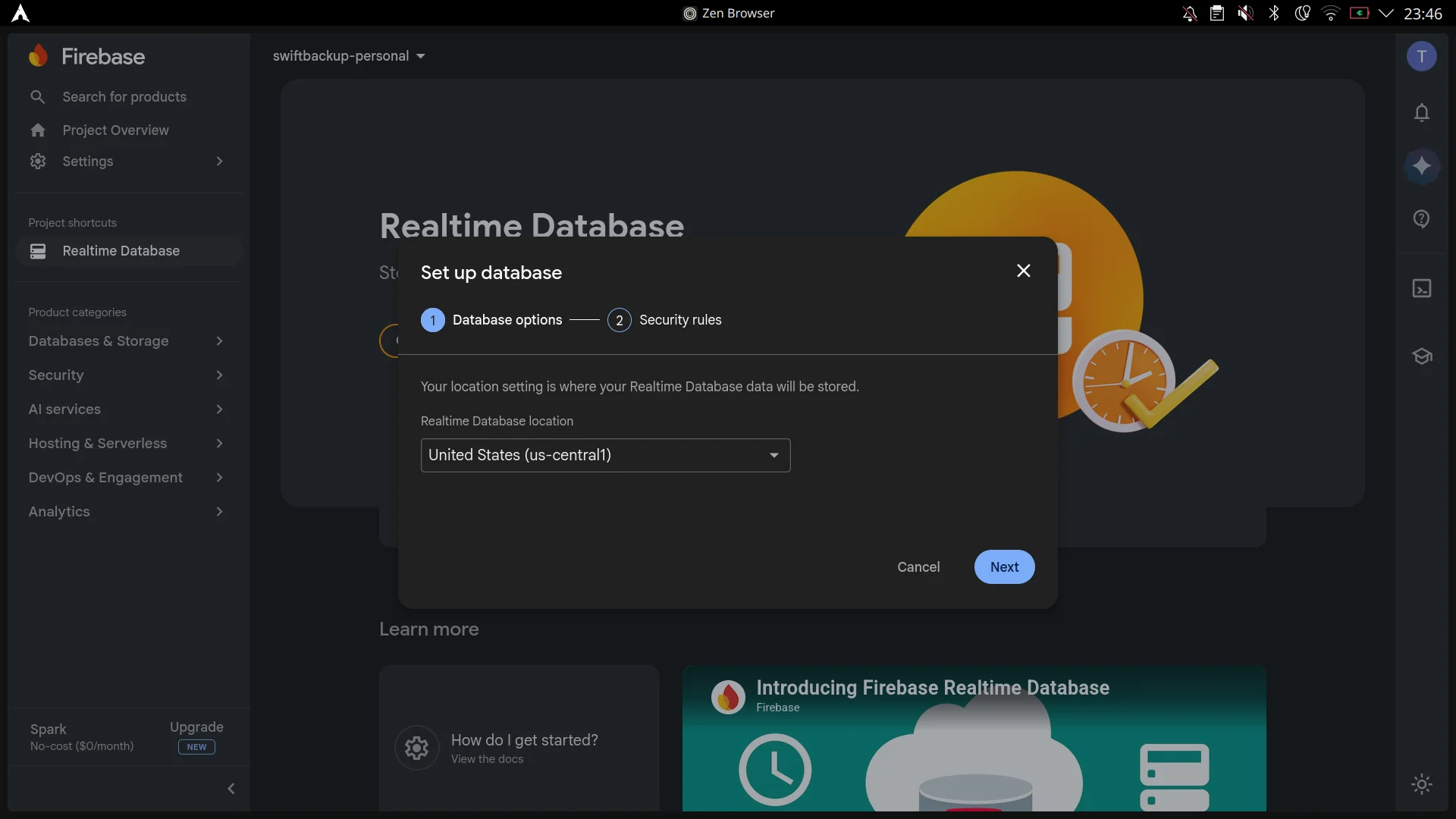
2. Choose database region / location
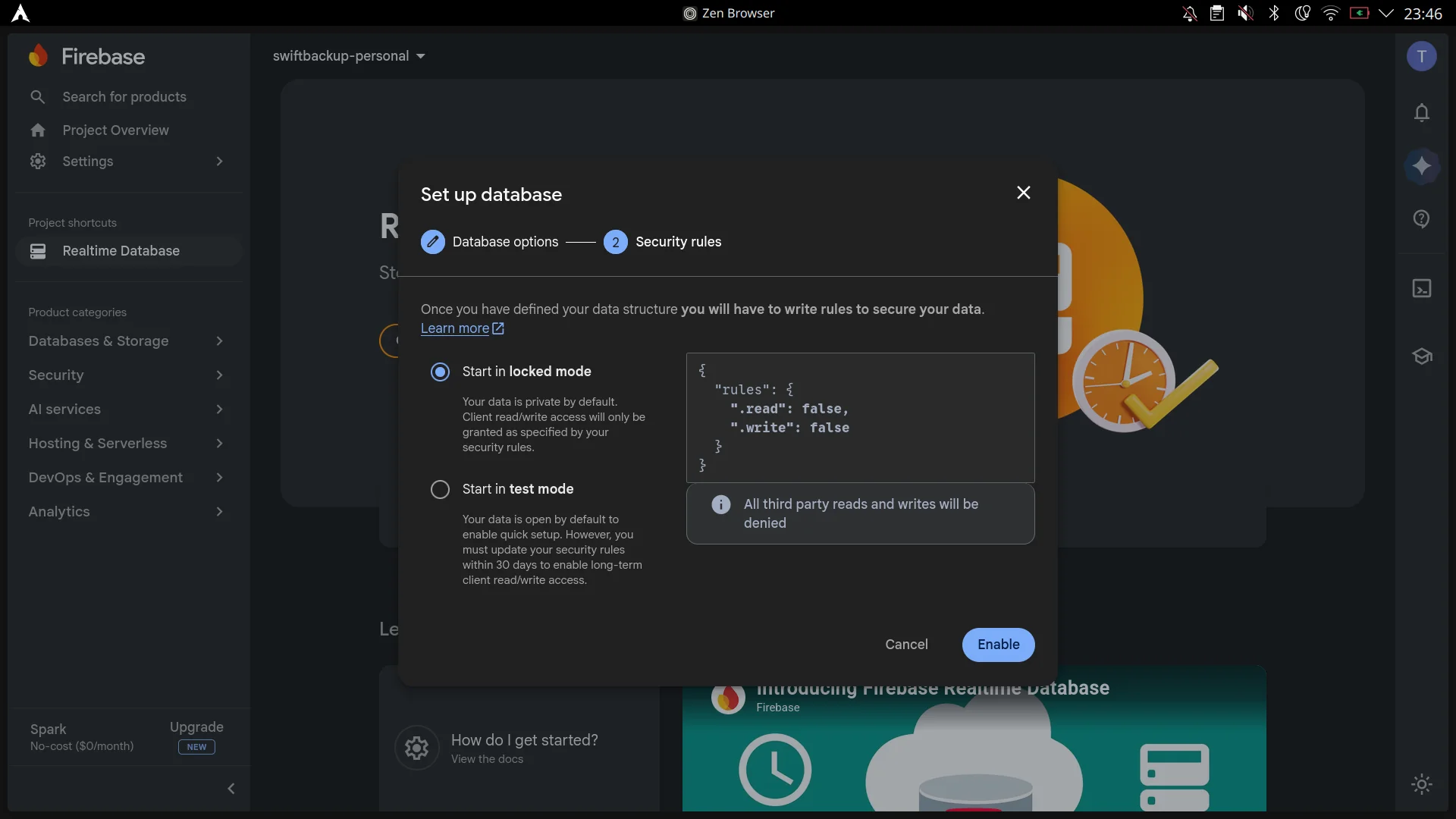
3. Select Start in locked mode and Enable
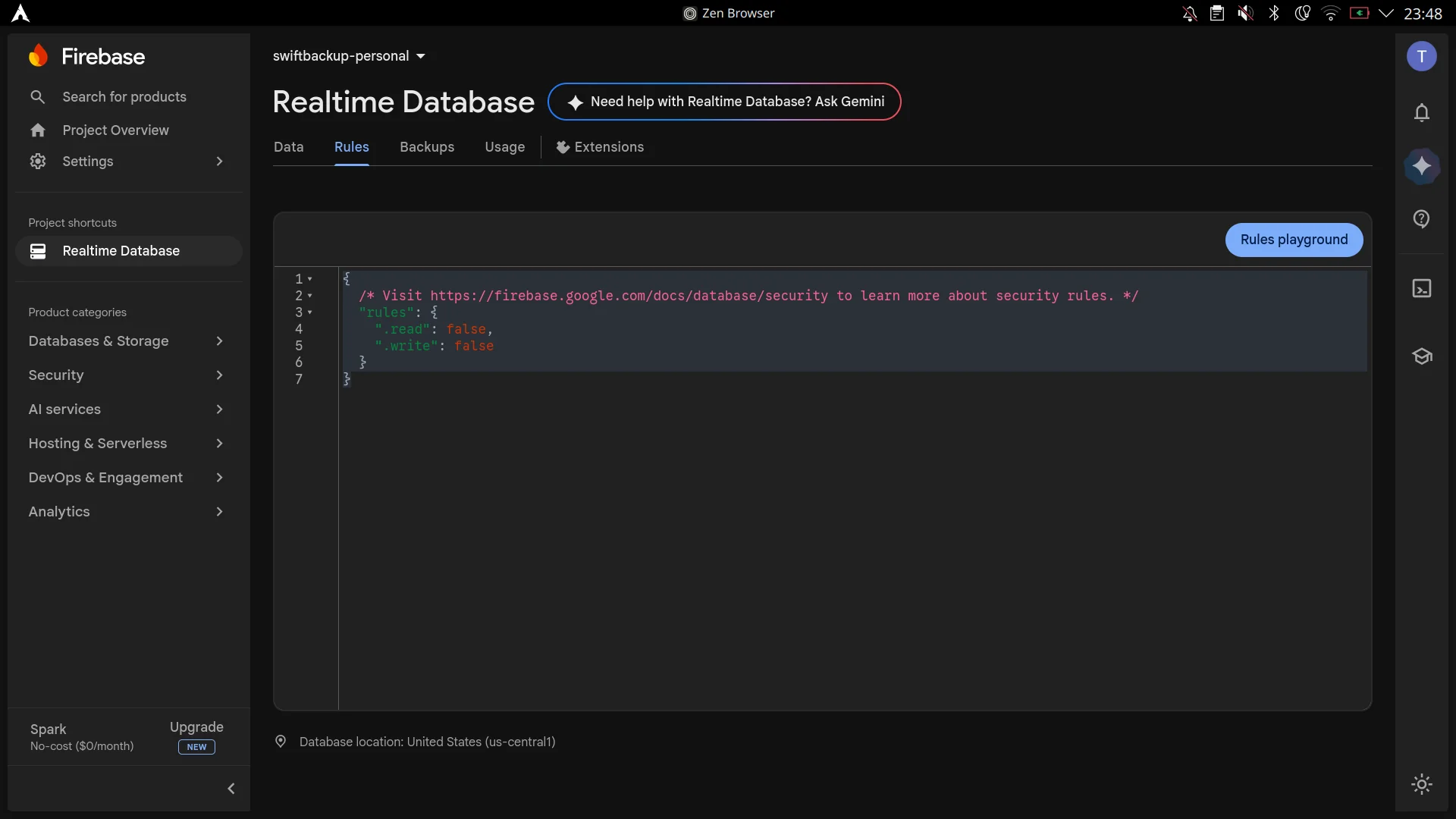
4. Switch to the Rules tab
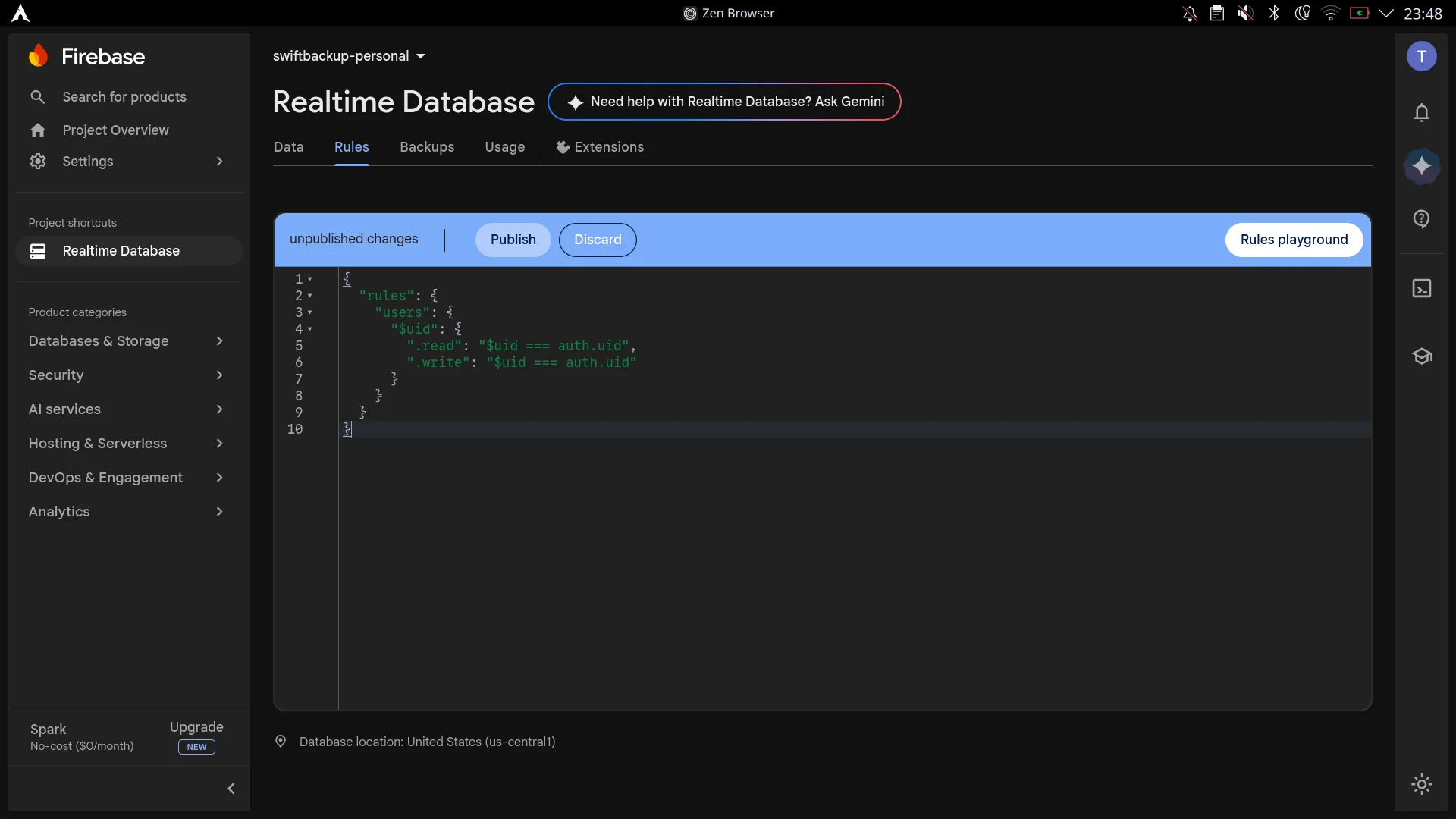
5. Replace rules and click Publish
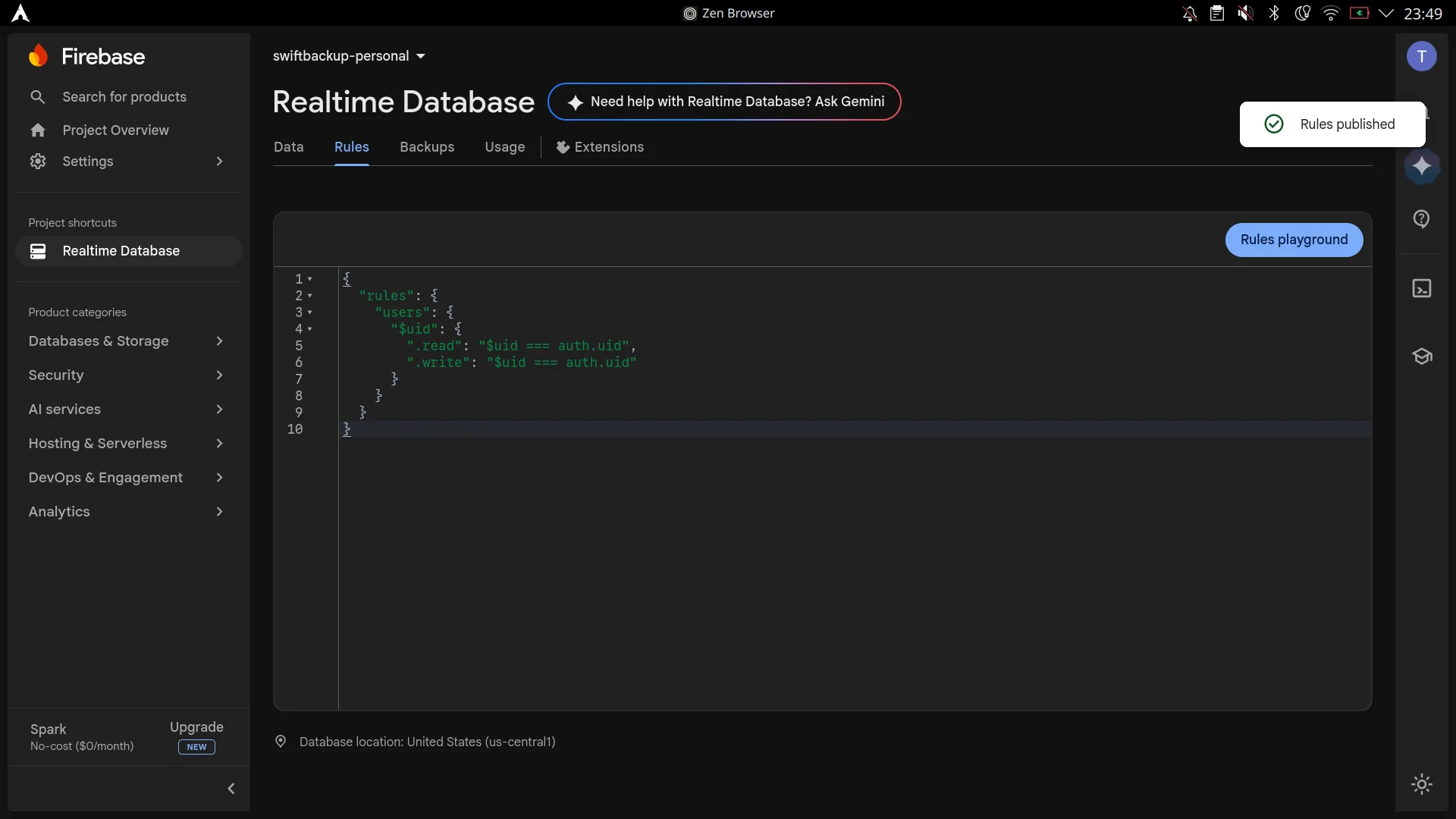
6. Security rules published successfully
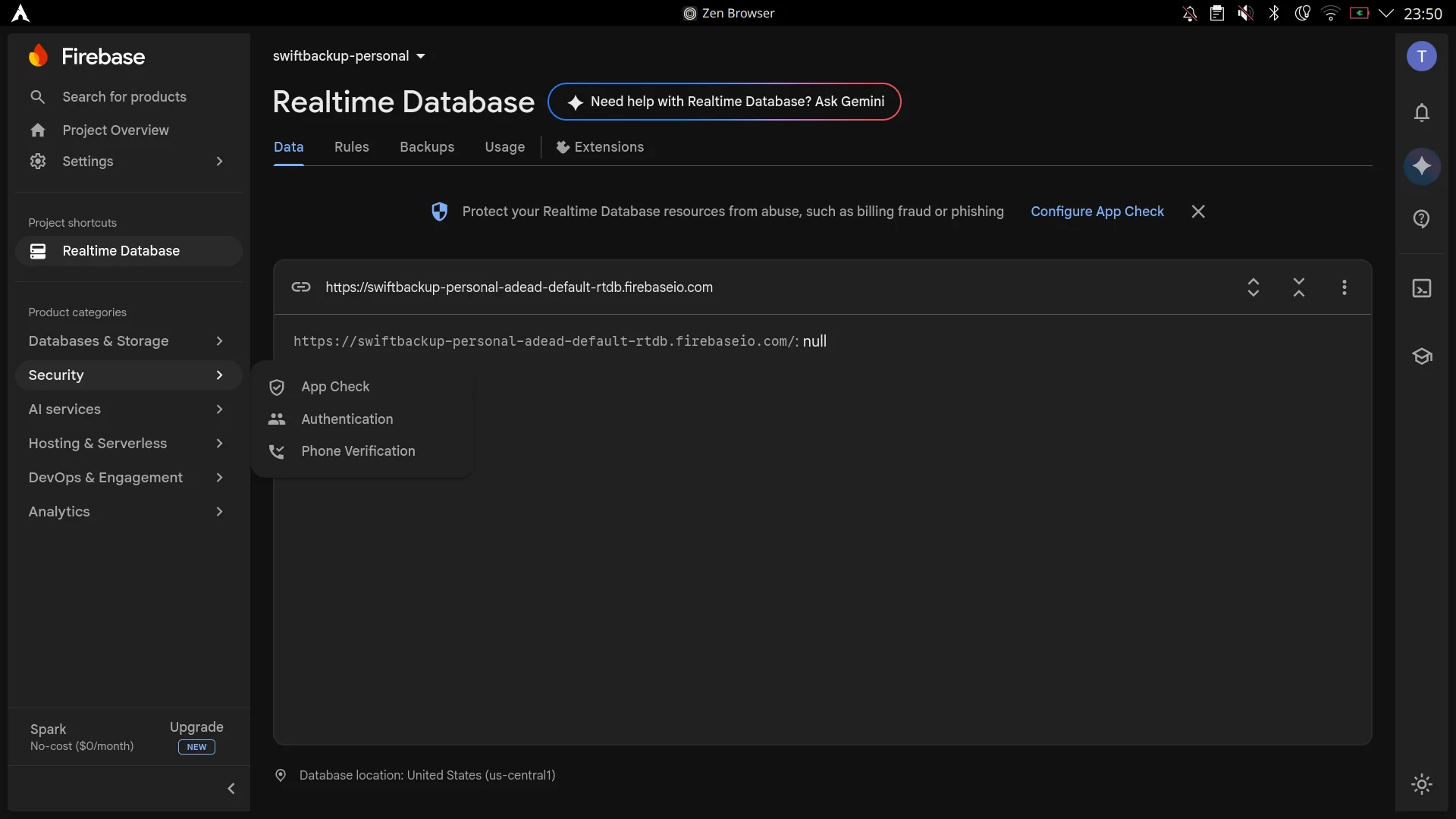
7. Copy your Realtime Database URL from the Data tab
- In the Firebase sidebar, navigate to Security > Authentication.
- Select the Sign-in method tab.
- Under Additional providers, select Google.
- Toggle Enable, enter a Public-facing name for project of your choice, choose a Project support email, and click Save.
View Step 3 Screenshots
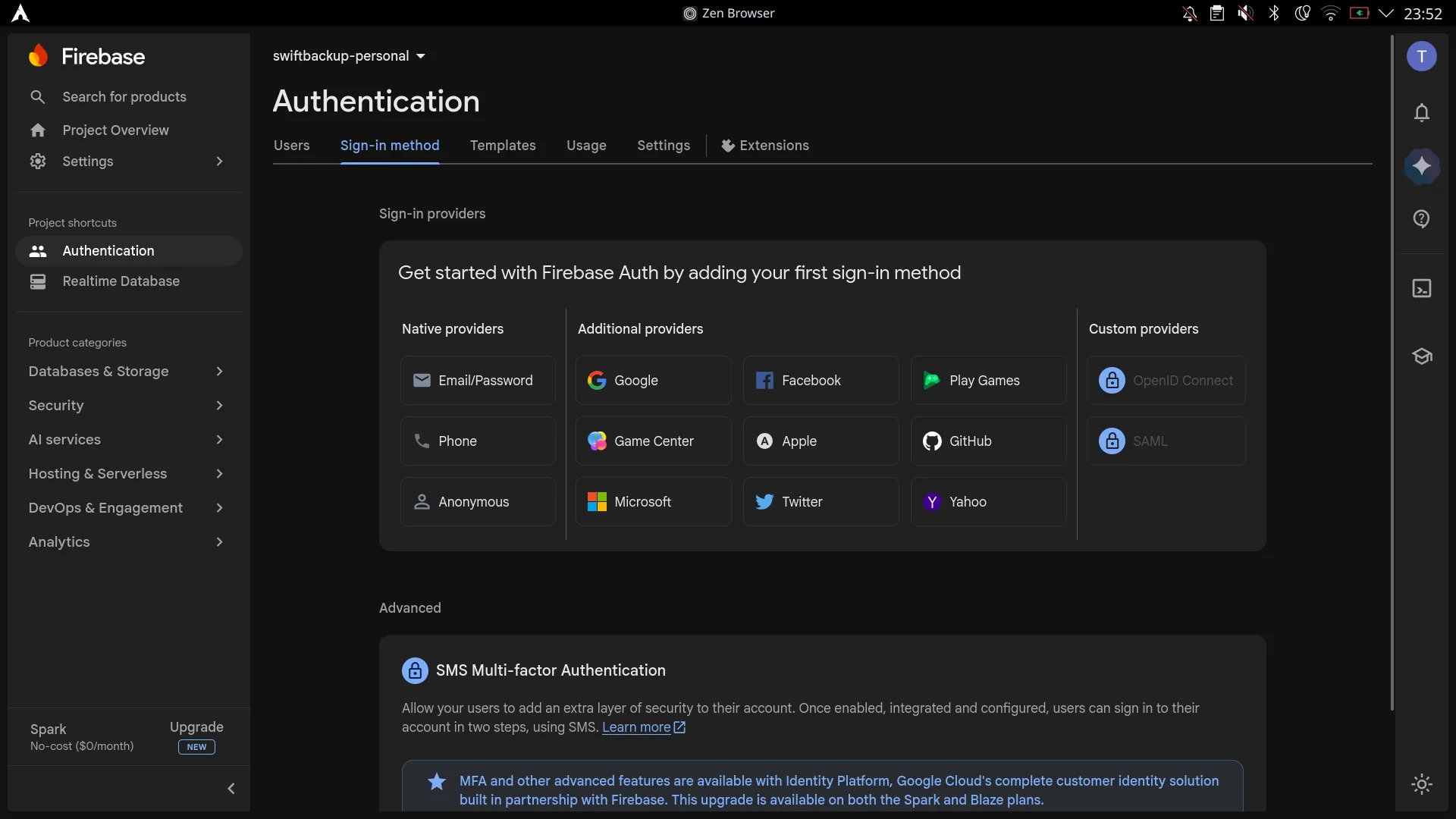
1. Navigate to Authentication > Sign-in method and select Google
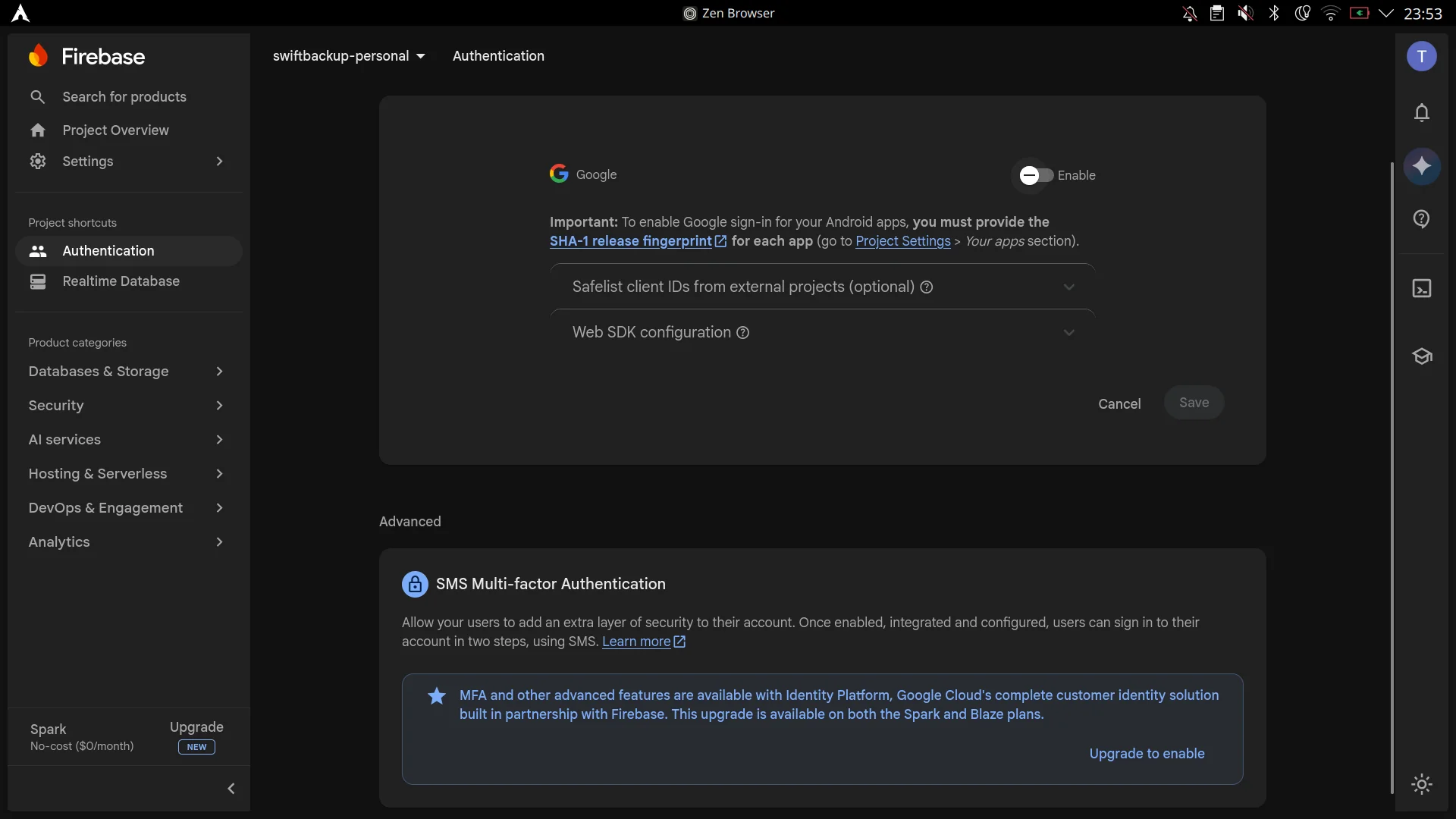
2. Google Sign-in provider configuration dialog
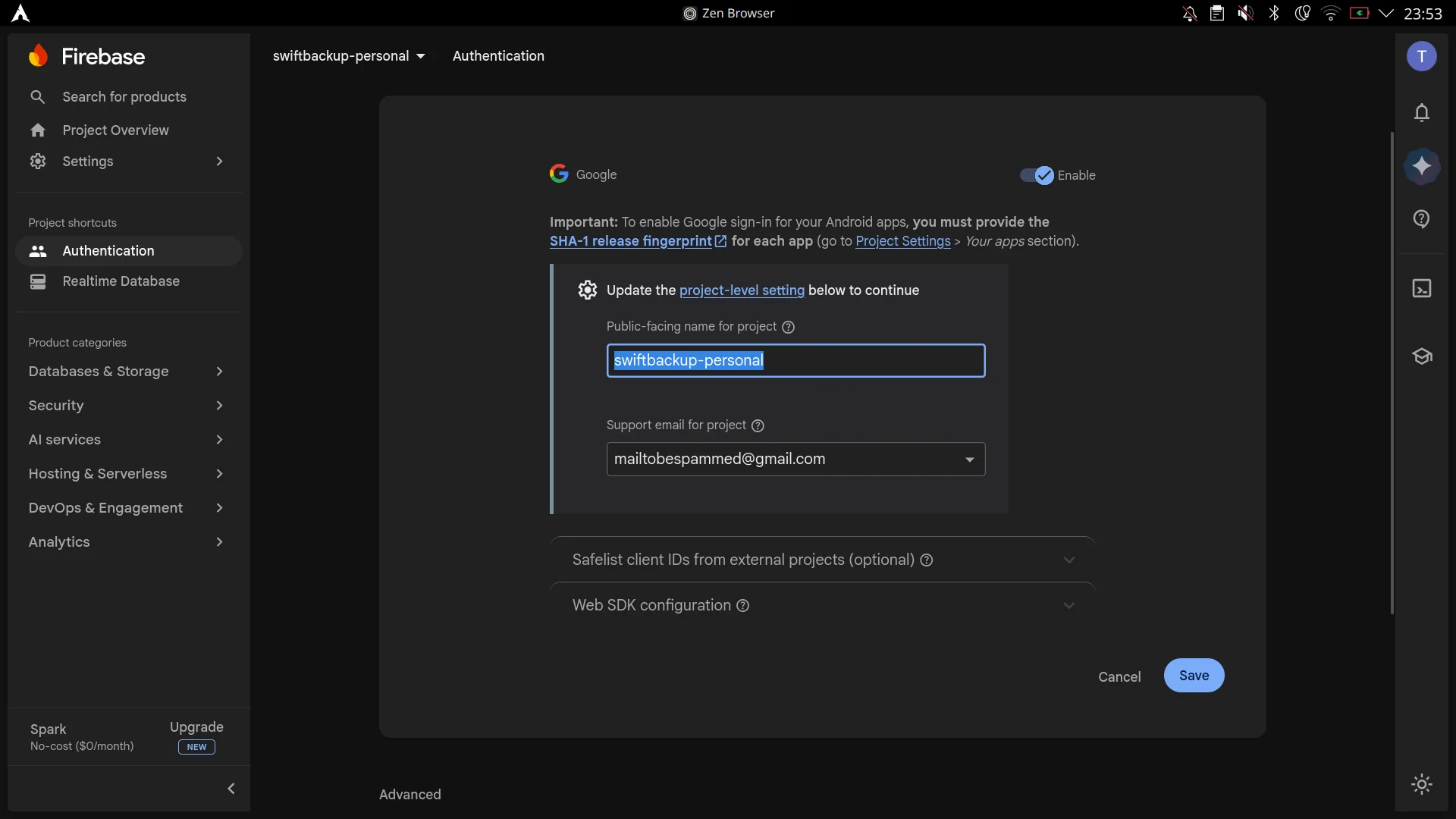
3. Toggle Enable, enter public-facing name and support email, then Save
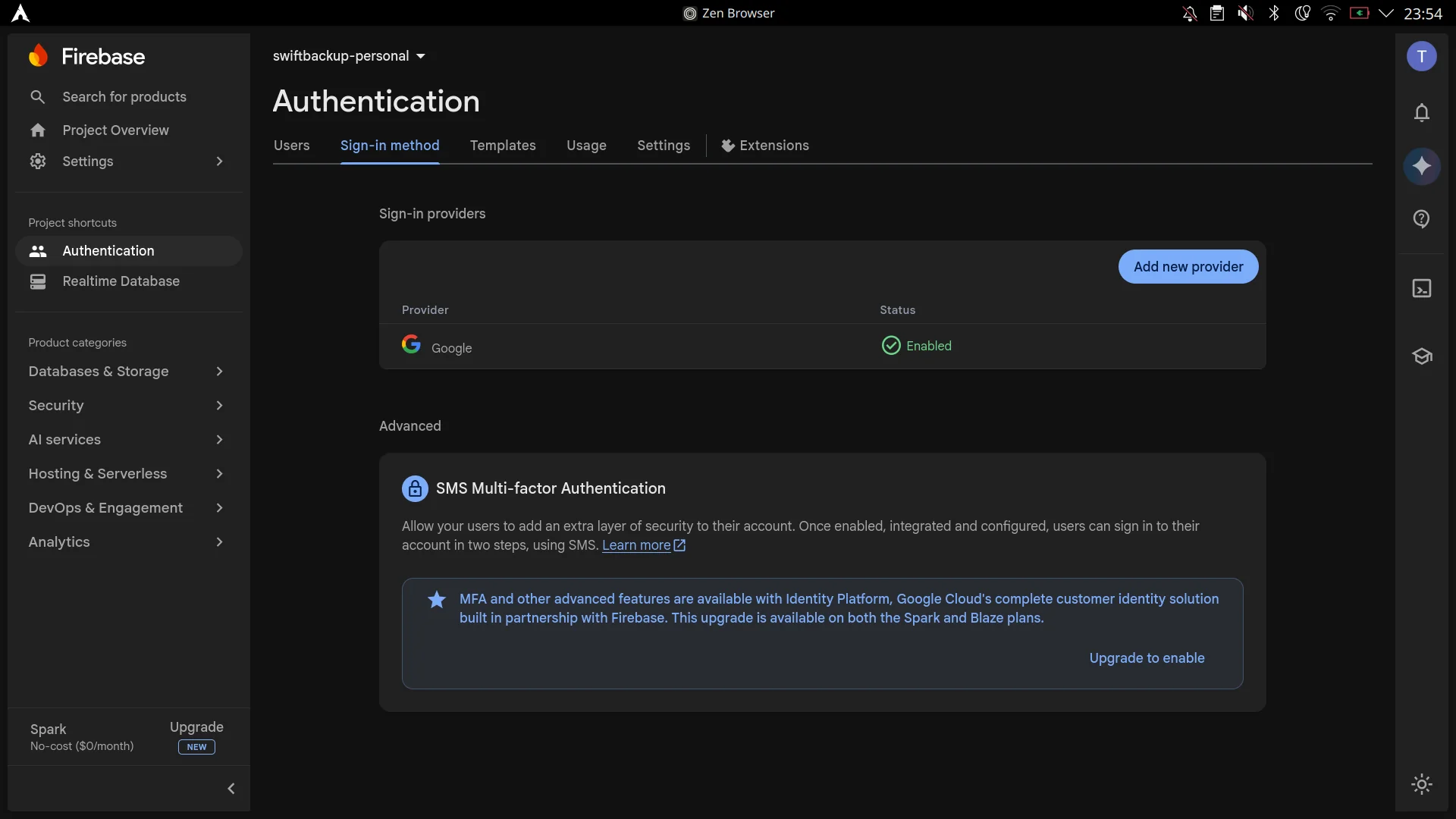
4. Google provider enabled successfully
- In Firebase Console, go to the Project Overview page from the sidebar.
- Under "Select a platform to get started", click the Android icon (Add app).
- Enter the package details:
- Android package name:
org.swiftapps.swiftbackup(or tap "Copy Package" in SwiftBackupPrem's Custom Firebase setup screen) - App Nickname:
SwiftBackupPersonal(or any name you like)
- Android package name:
- Click Register app.
- Click Download google-services.json to save the configuration file.
- Click Next through the remaining setup steps, then click Continue to console.
- On the Project Overview page, click the newly registered app card and select the Gear icon (Project Settings).
- Scroll down to the Your apps section, click Add fingerprint, paste your SHA-1 fingerprint (tap "Copy Fingerprint" in the Custom Firebase setup screen in the module), and click Save.
- (Optional) Click the Data privacy tab on Project Settings and uncheck Firebase Service Data Sharing.
View Firebase App Registration Screenshots
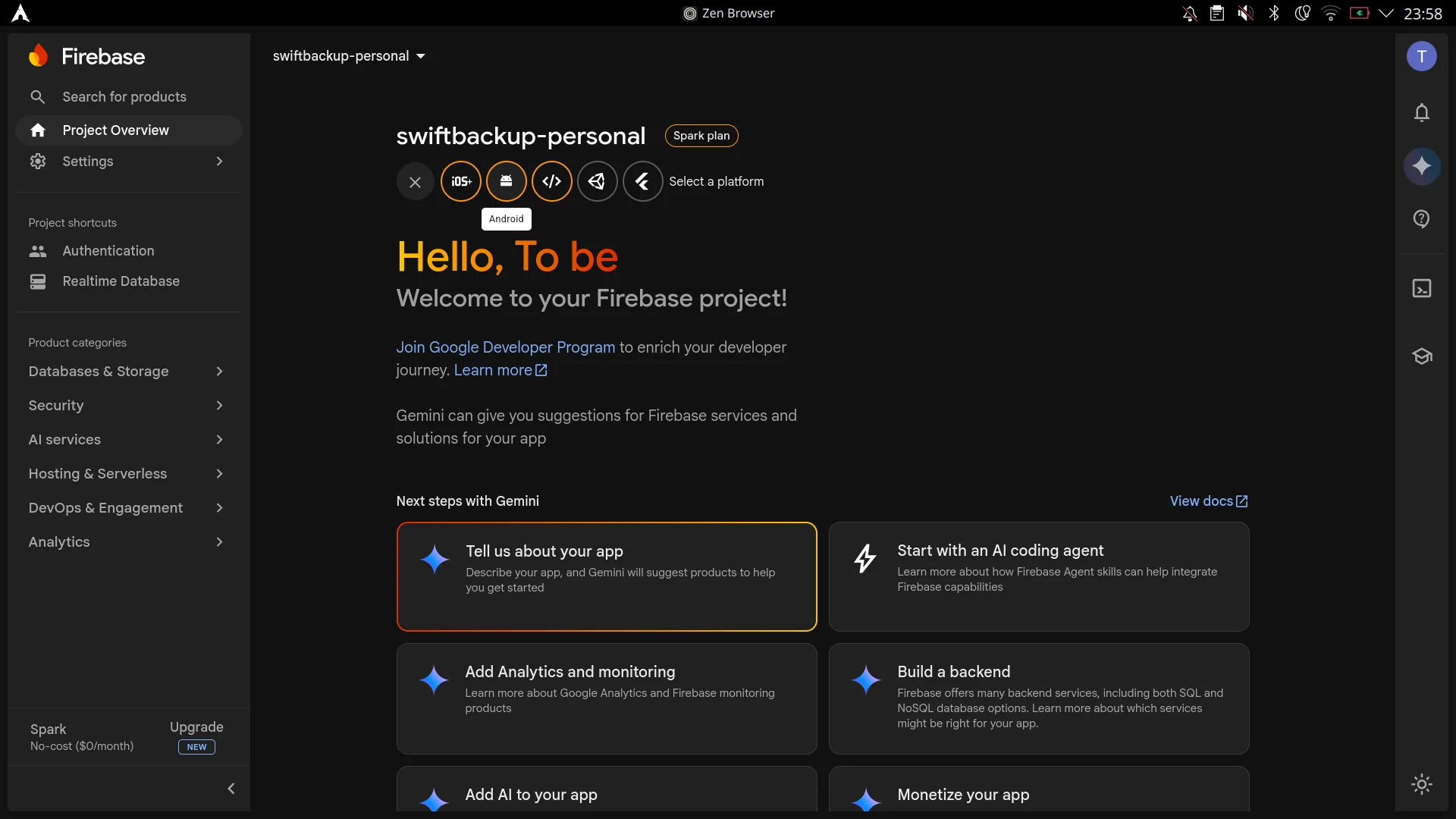
1. Click the Android platform icon on Project Overview
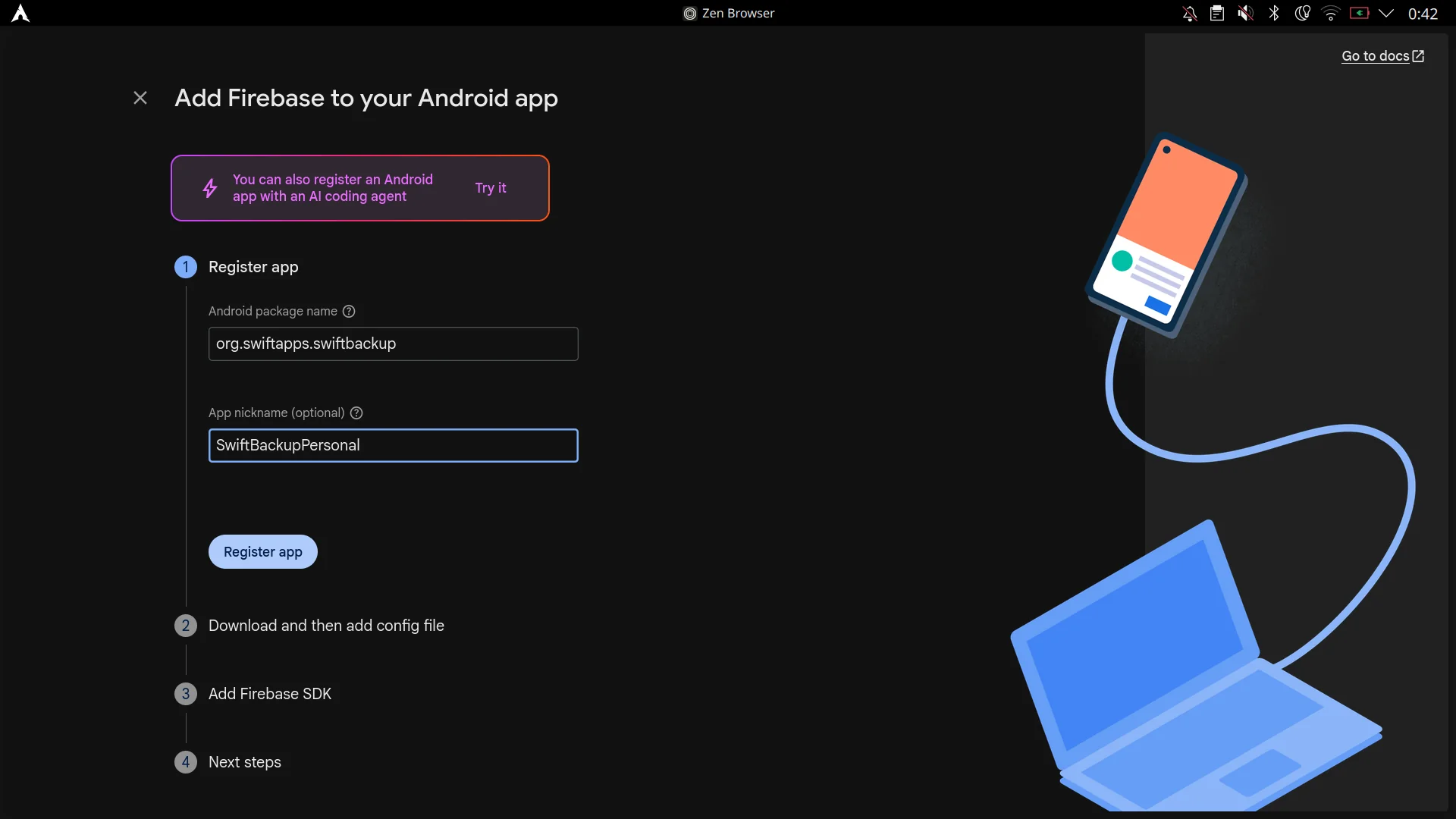
2. Enter package name org.swiftapps.swiftbackup and nickname
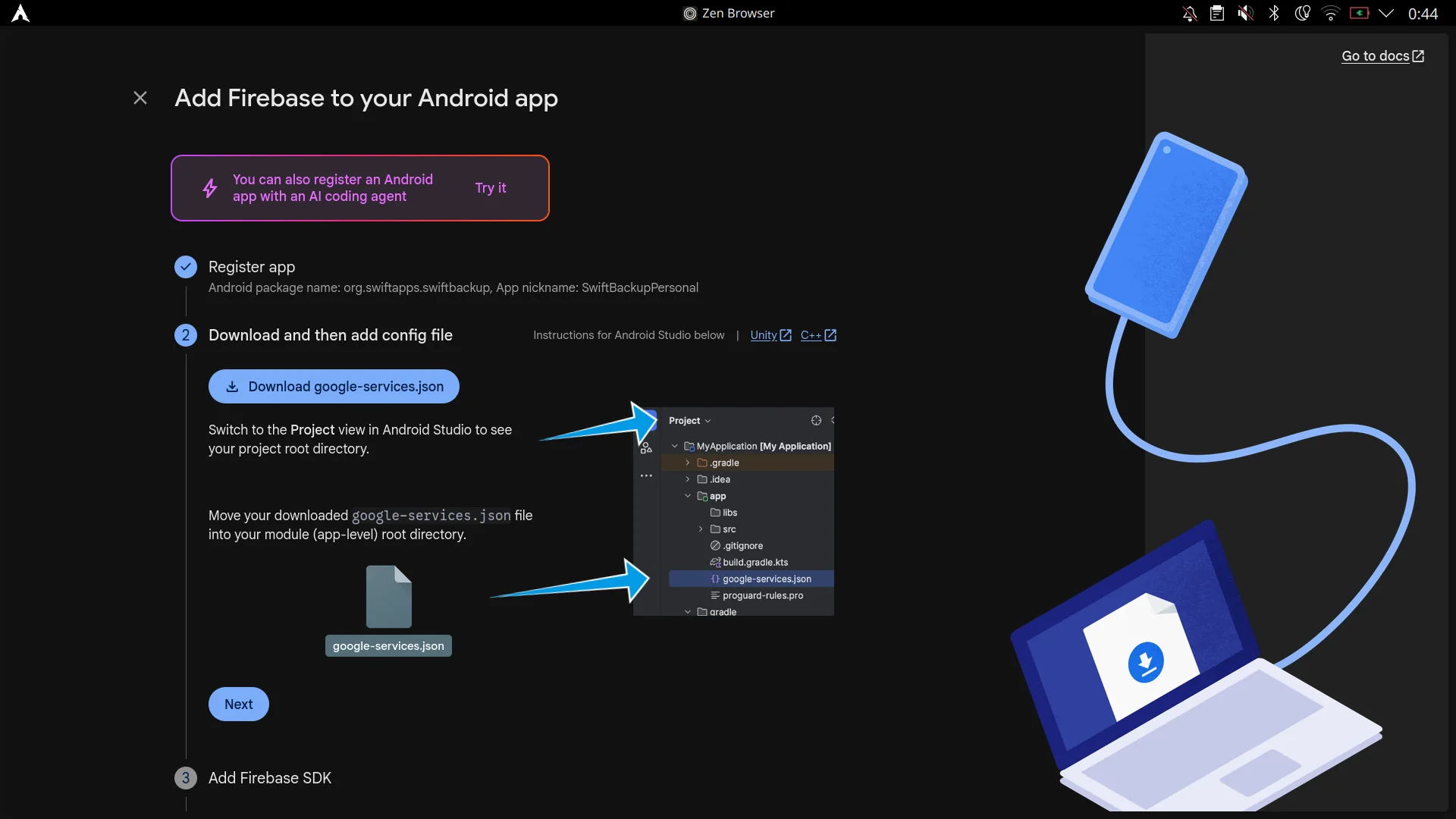
3. Download google-services.json configuration file
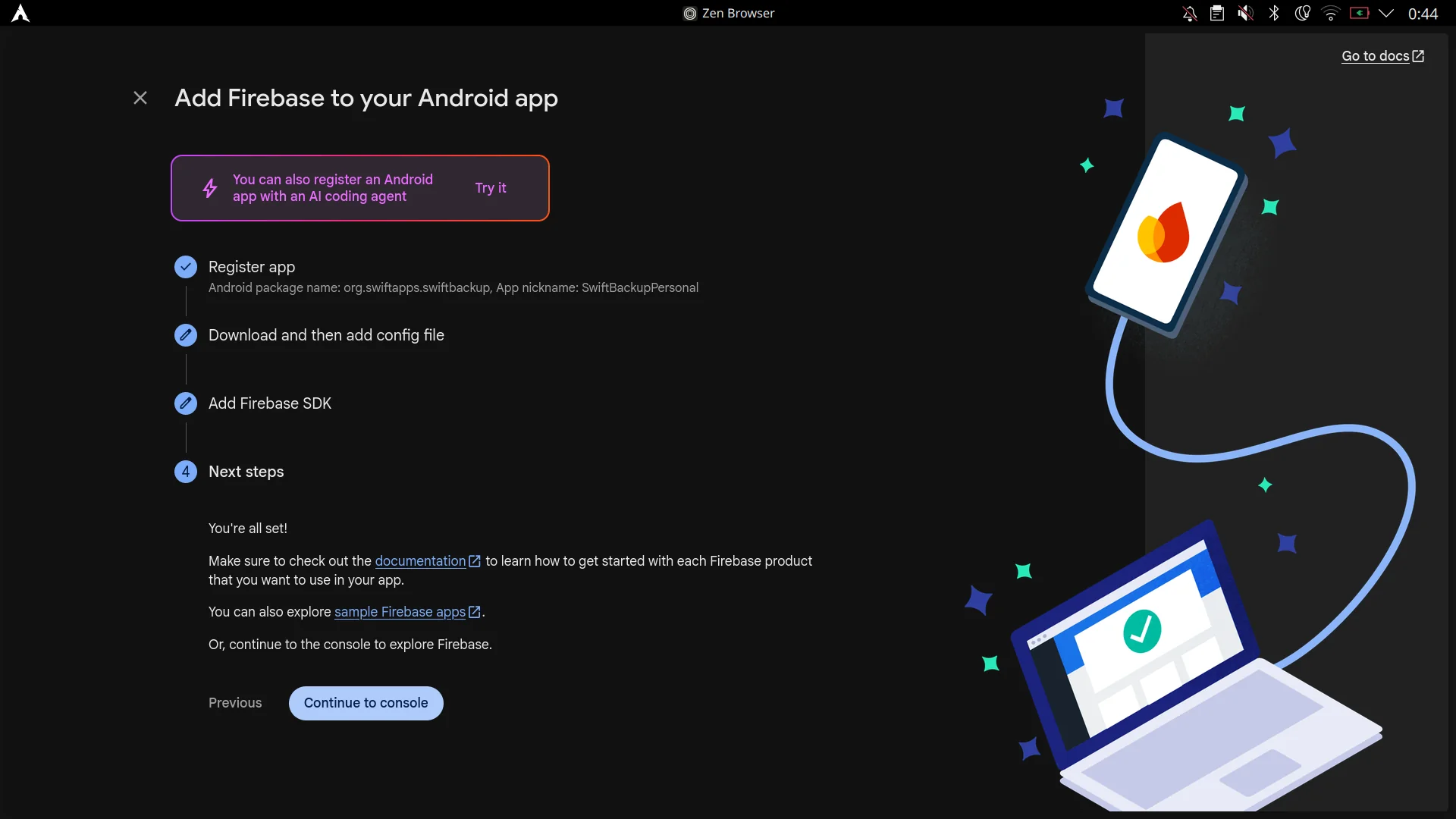
4. Skip SDK setup and continue to console
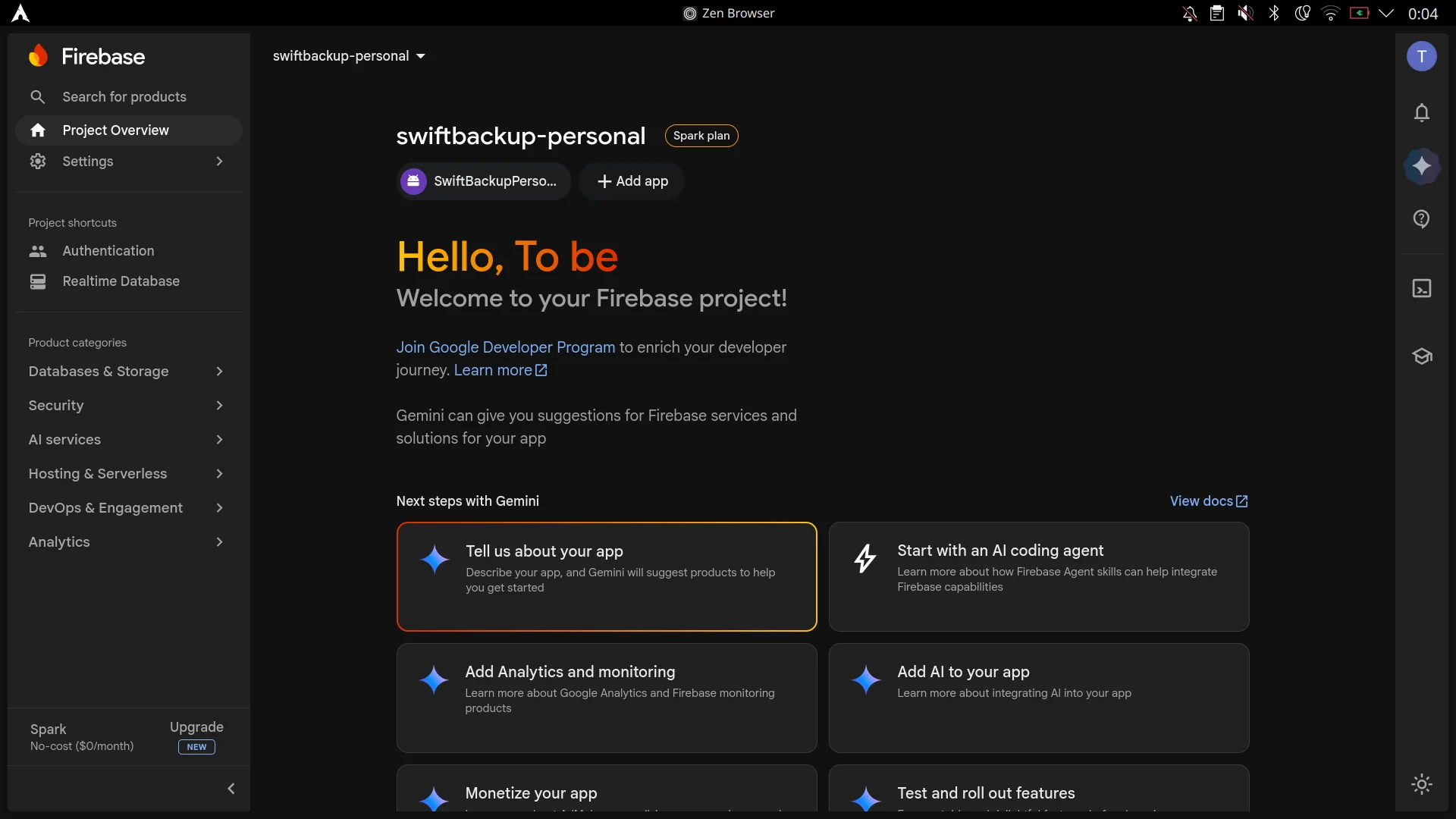
5. App is registered on Project Overview
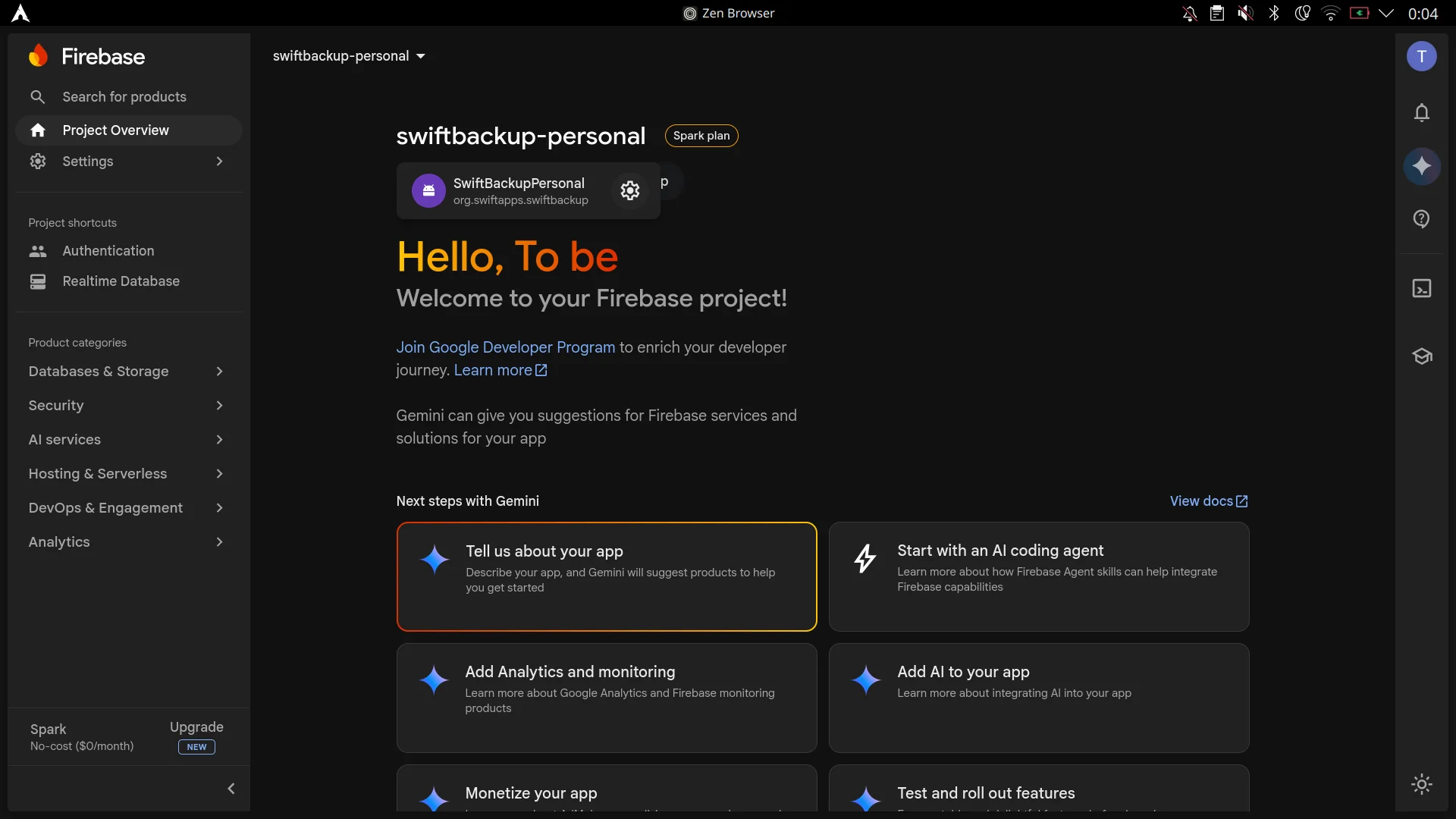
6. Click the gear icon to open Project Settings
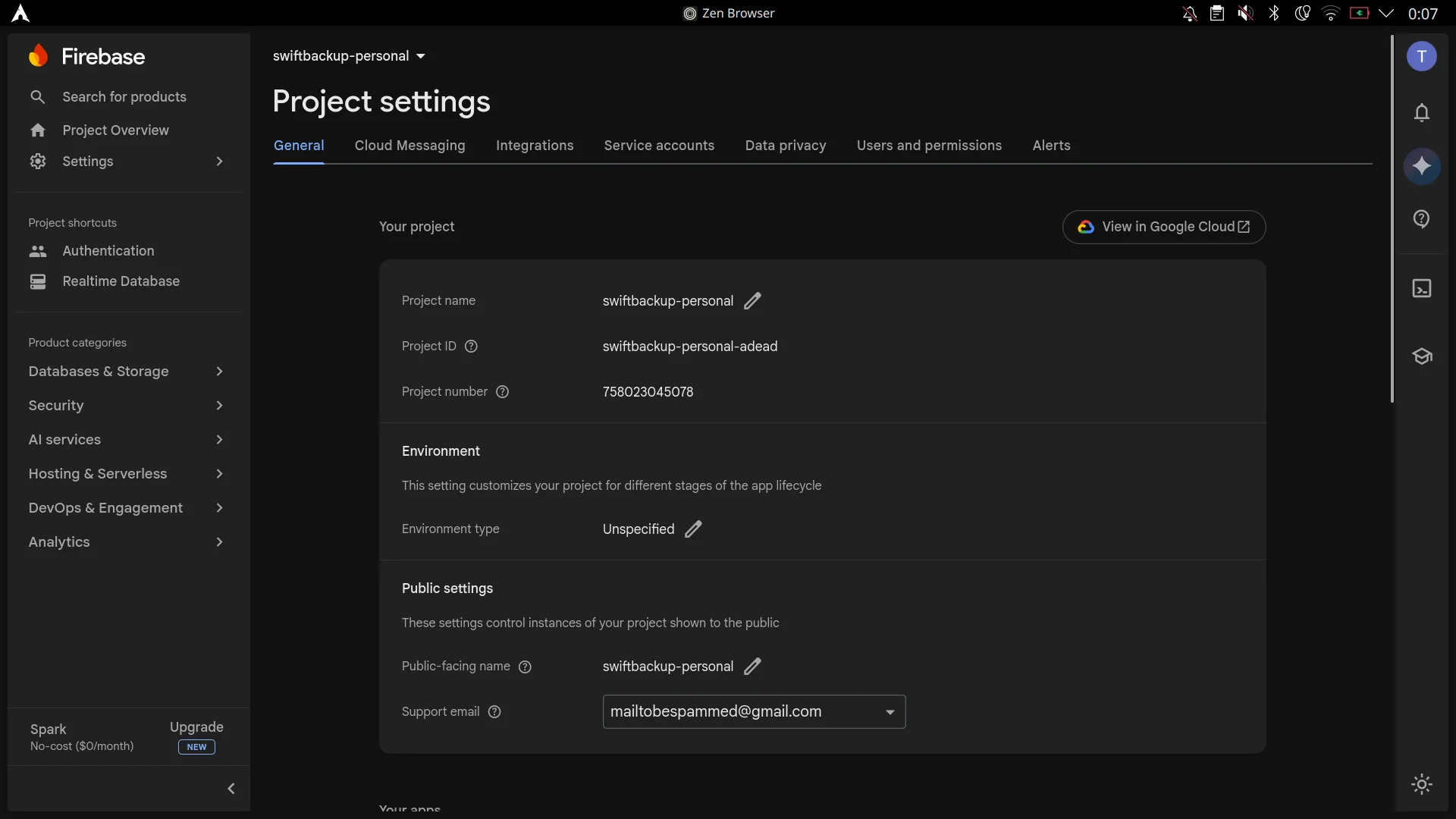
7. Project Settings Overview (View in Google Cloud)
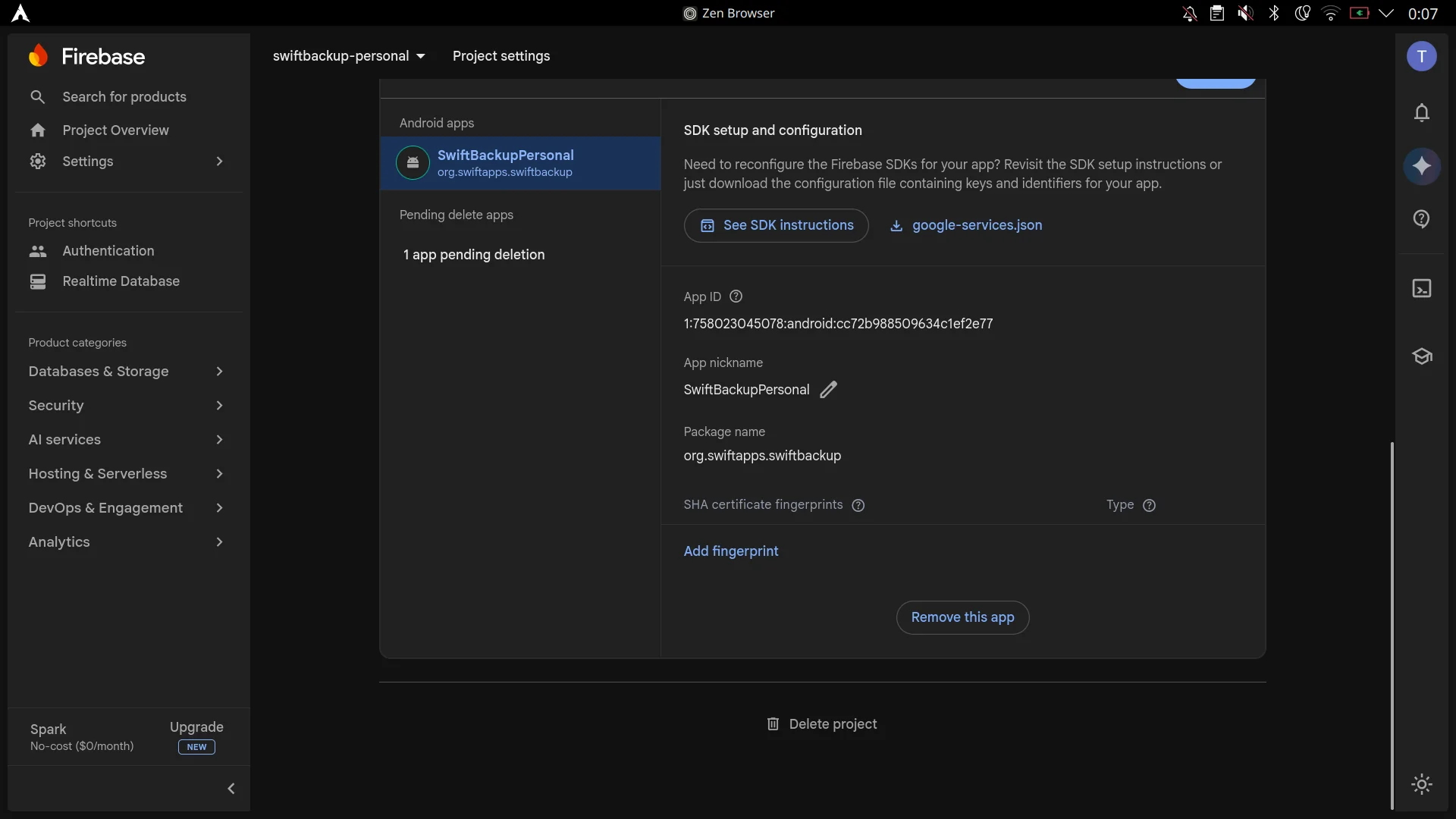
8. Add SHA-1 fingerprint under Your apps
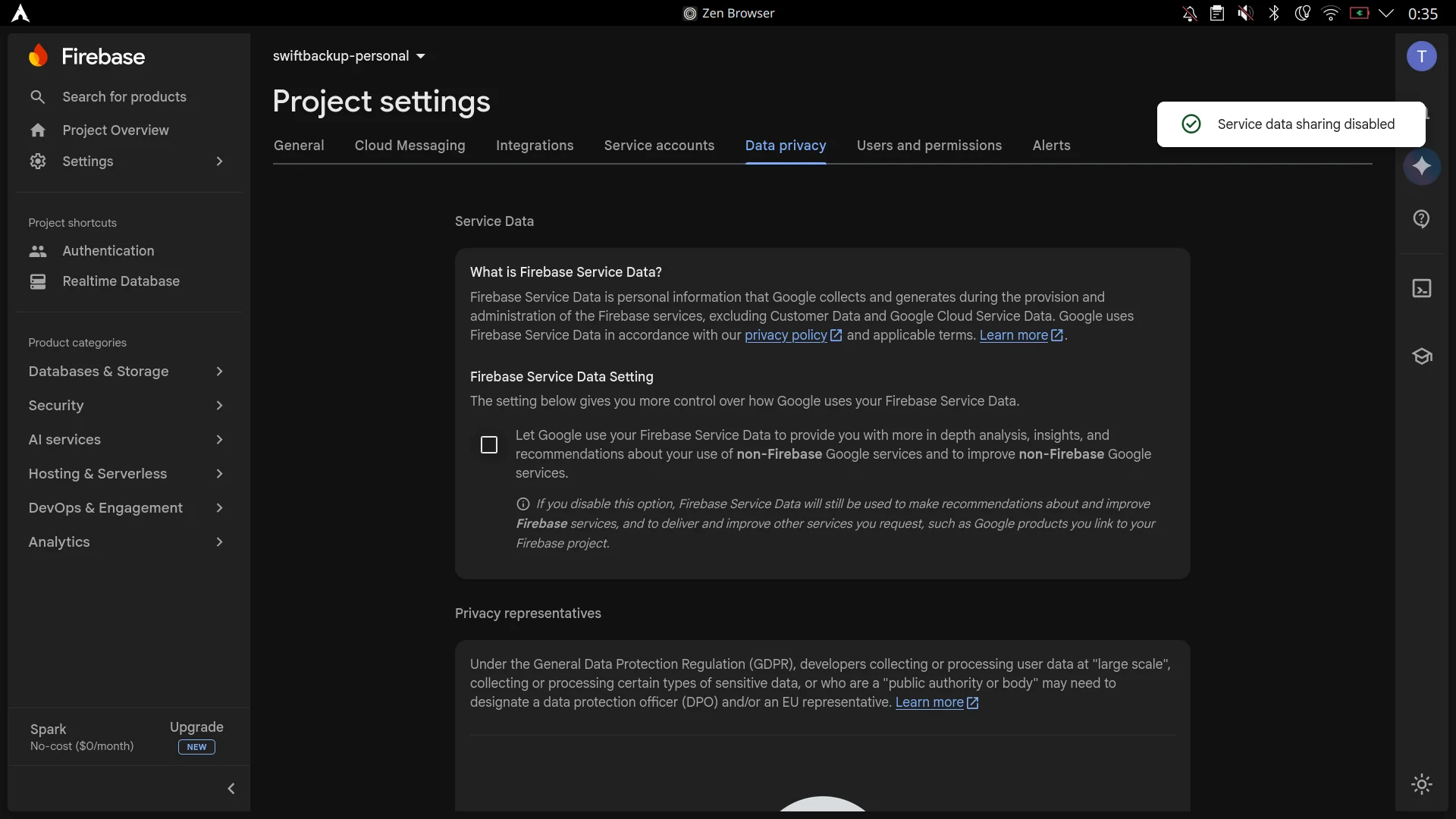
9. Optional: Disable Firebase Service Data Sharing
- Open the Google Cloud API Credentials Console by clicking View in Google Cloud on the Firebase Project Settings page.
- Ensure your Firebase / Google Cloud project is selected in the top project dropdown.
- In the sidebar, navigate to APIs & Services > Credentials.
- Under OAuth 2.0 Client IDs, edit the auto-generated Android client for org.swiftapps.swiftbackup.
- Under Advanced settings, check Enable custom URI scheme (click Yes in the confirmation popup).
- Click Save.
- Copy the generated Client ID string (e.g.,
xxxxxxxxxxxx-xxxxxxxxxxxxxxxx.apps.googleusercontent.com).
View Google Cloud OAuth Client Screenshots
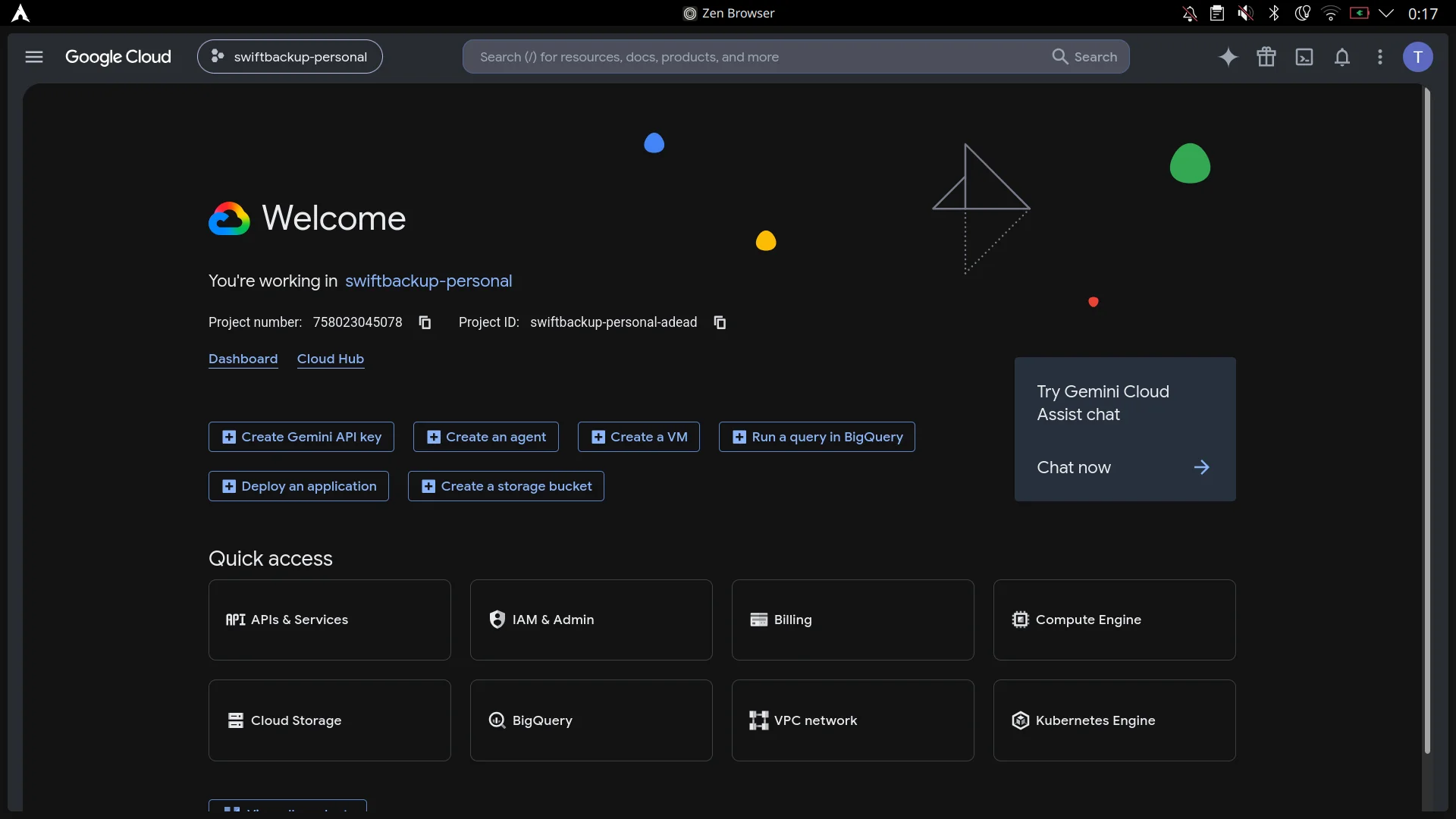
1. Google Cloud Console Dashboard
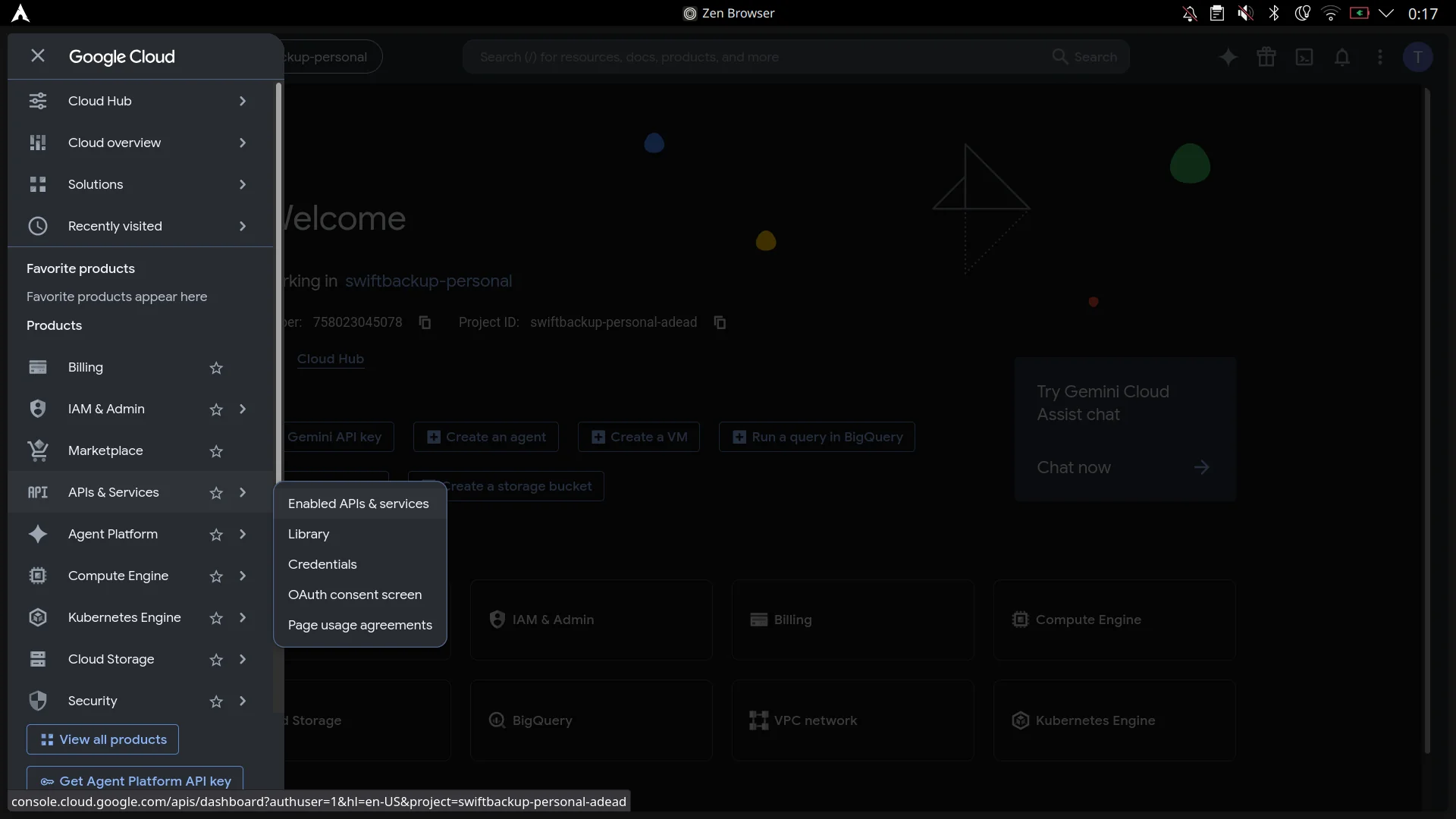
2. Navigate to APIs & Services > Credentials
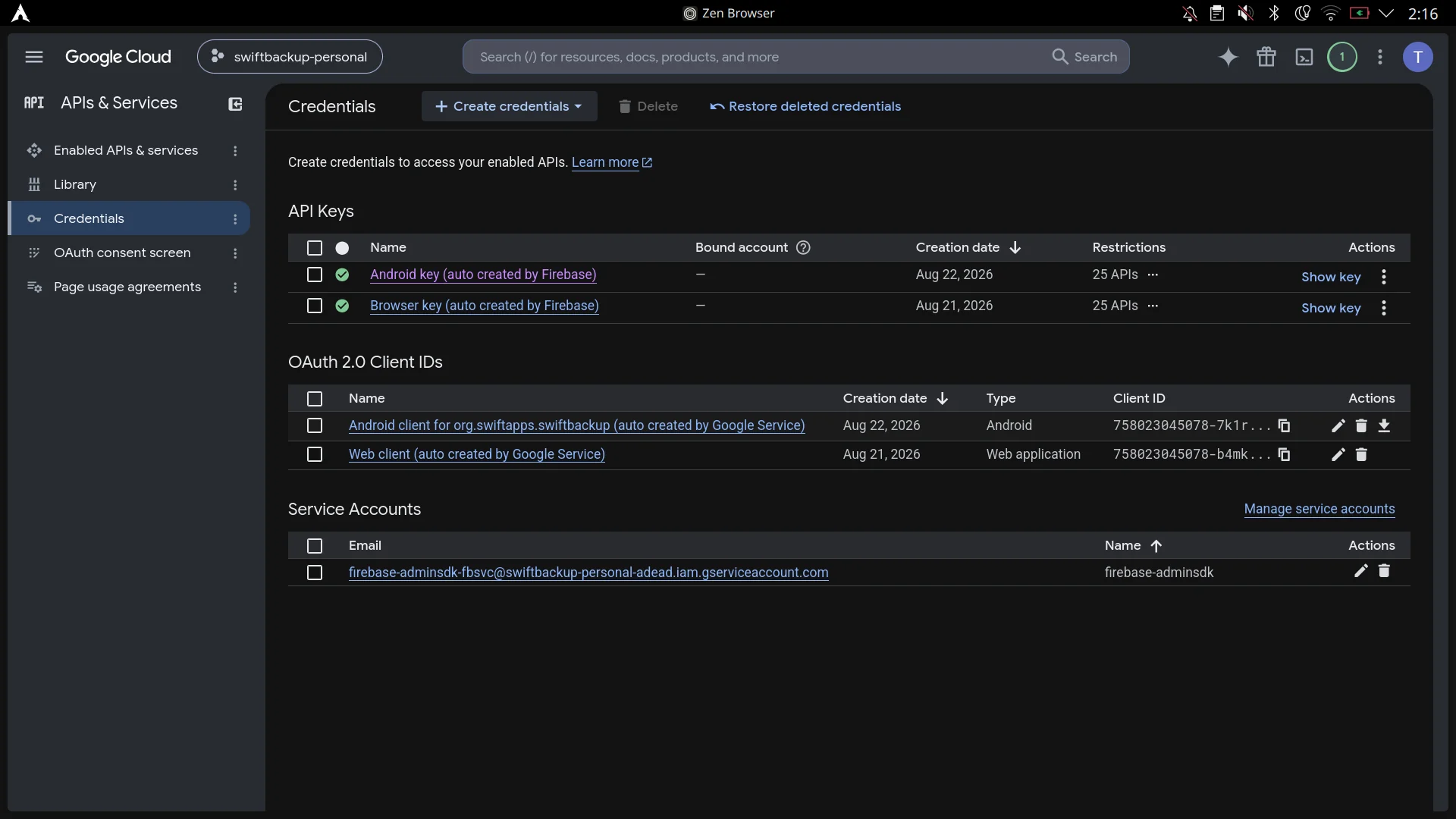
3. Under OAuth 2.0 Client IDs, edit the auto-generated Android client
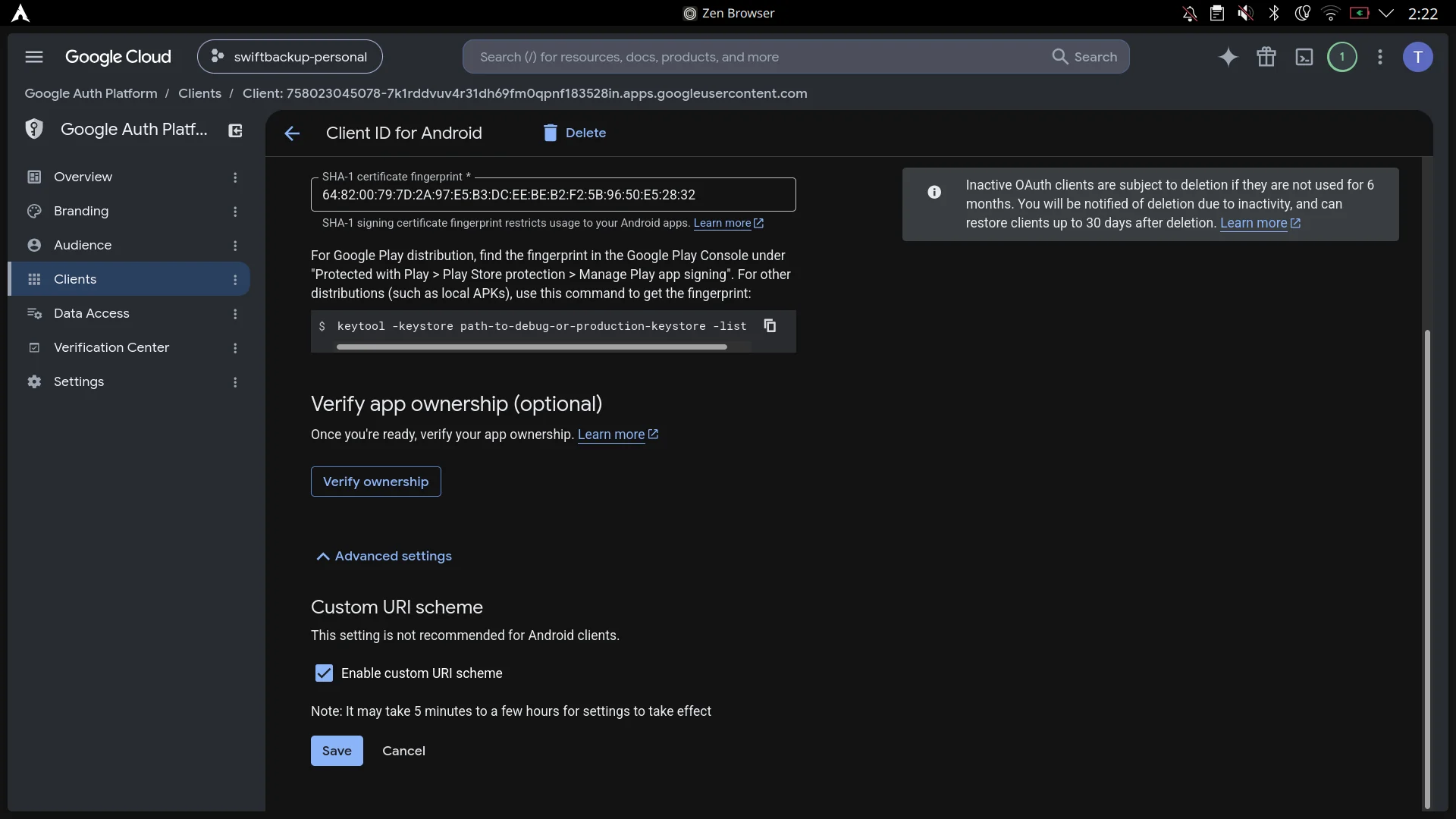
4. Under Advanced settings, enable Custom URI scheme
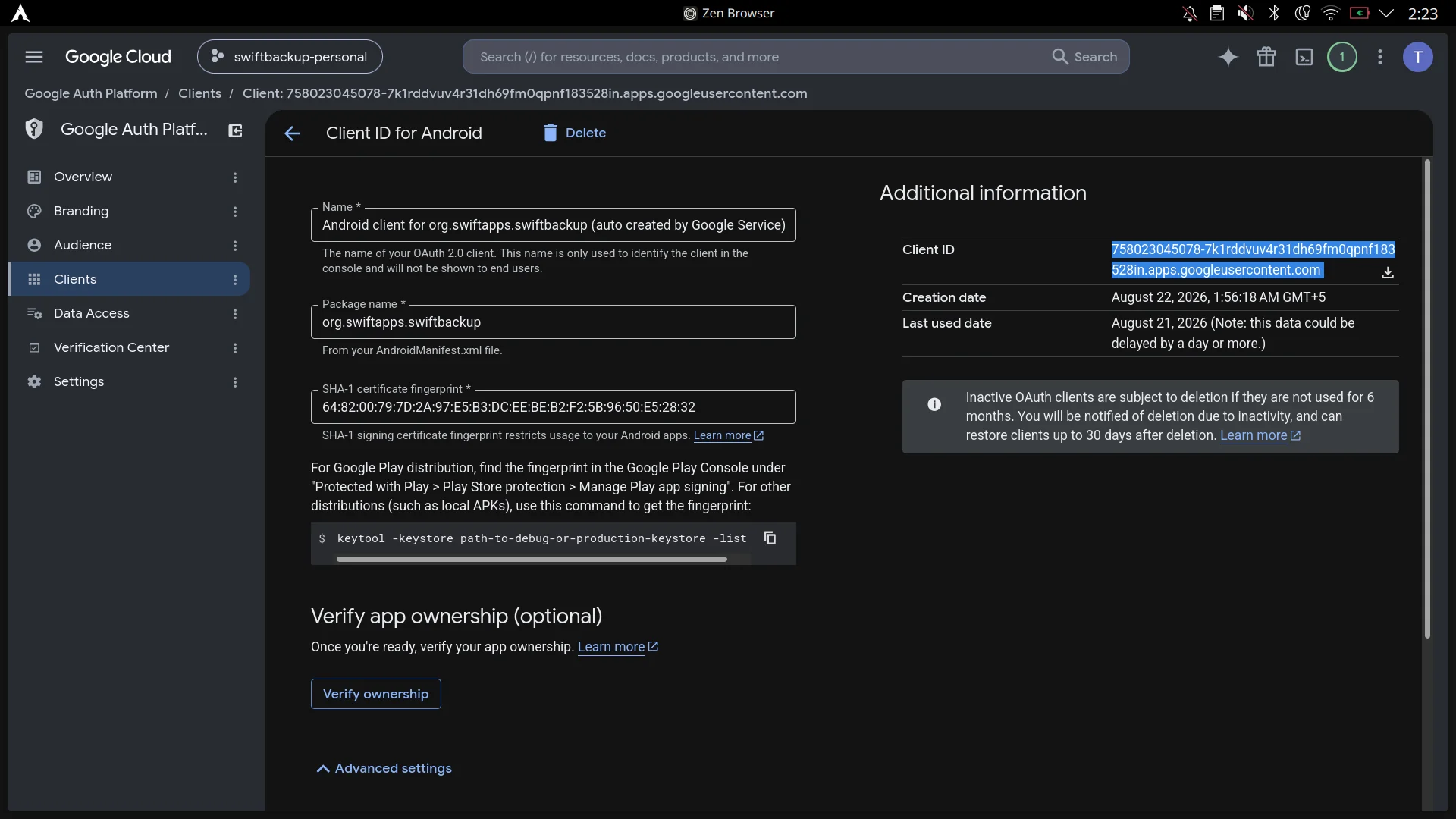
5. Copy your generated OAuth Client ID
If you plan to use Google Drive for cloud backups:
- Visit the Google Cloud Drive API Console.
- Select your Firebase / Google Cloud project at the top.
- Click Enable to allow Swift Backup to interact with Google Drive via your project.
- Open the Google Cloud OAuth Scopes Console.
- Ensure your project is selected at the top.
- Navigate to Data Access > click Add or remove scopes.
- In the filter box, search for and enable:
(This provides safe, per-file access for files created or opened by Swift Backup without requiring broad drive permissions).
https://www.googleapis.com/auth/drive.file - Click Update, then click Save (or Save and continue).
- Open SwiftBackupPrem on your device.
- Enable Custom Firebase app.
- Choose either method:
- Method A (Automatic): Tap Import google-services.json and pick the downloaded JSON file. Then paste your OAuth Client ID into the Client ID field.
- Method B (Manual Wizard): Follow the guided setup in the app to review and confirm all fields.
- Tap Finish & Save.
- Tap Force Stop at the bottom to kill any running Swift Backup instances, then tap Open App.
- Sign in to Swift Backup with your Google account.
Note
Firebase Cloud Storage is Optional (Skip if on Spark Plan)
Firebase Cloud Storage now requires a paid Blaze Plan (linked Cloud Billing account). You can safely skip enabling Cloud Storage in Firebase Console. Swift Backup does not store your backup files (APKs, app data, call logs) inside Firebase Storage. Firebase is only used for authentication and metadata synchronization. Your actual backups are stored in your configured cloud provider (Google Drive, WebDAV, Nextcloud, SMB, etc.) or local storage.
Install Swift Backup with the default Firebase configuration and log in to pull your UID from /data/data/org.swiftapps.swiftbackup/shared_prefs/com.google.firebase.auth.api.Store.*.xml:
su -c 'grep -o "GET_TOKEN_RESPONSE\.[^\"]*" /data/data/org.swiftapps.swiftbackup/shared_prefs/com.google.firebase.auth.api.Store.*.xml | cut -d. -f2'Important
If your account has been banned by the developer of Swift Backup, you will not be able to fetch your UID if you uninstalled the app after the ban, as the /data/data/org.swiftapps.swiftbackup/shared_prefs/ directory will be deleted. Without this UID, cloud backups cannot be decrypted and will be permanently lost.
This is the only way to fetch your UID, so do not uninstall the app until you have your UID saved safely somewhere.
Swift Backup takes the MD5 hash of your Firebase UID and uses the first 16 characters for the folder name:
echo -n "example uid" | md5sum | cut -c 1-16Output: example16char -> /sdcard/SwiftBackup/accounts/example16char/
or in case of cloud folder: Swift Backup (example16char)
-
Install Firebase tools using your preferred package manager (e.g., via Node.js):
npm install -g firebase-tools
-
Run
firebase loginto connect your account:firebase login
-
Create a
users.jsonfile:{ "users": [ { "localId": "example uid", "email": "examplemail@gmail.com", "emailVerified": true, "displayName": "examplename" } ] } -
View your Project ID:
firebase projects:list
-
Run the import command:
firebase auth:import users.json --project exampleprojectID
-
Log in again to Swift Backup.
SwiftBackupPrem features a powerful, built-in Backup Migration Tool (accessible by tapping the Backup Migration card from the main screen).
The Migration Tool bridges the gap between different Firebase environments and cloud storage configurations through two dedicated tabs:
- Local Migration: An on-device cryptographic and metadata reconstruction tool to decrypt, convert, and re-encrypt existing backup folders across different Firebase UIDs, anonymous keys, or unencrypted portable formats.
- Cloud Discovery & Injection: A runtime hooking and scanning engine that discovers backups across diverse cloud providers (Google Drive, OneDrive, Dropbox, Box, pCloud, S3, WebDAV / Nextcloud) and injects them directly into Swift Backup's restore screens without requiring prior database records.
Swift Backup encrypts application data (.dat, .extdat, .med), system payloads, and directory archives (folder-base.fld) using Facebook Conceal (AES-256-GCM + Zstandard compression) keyed against the user's active Firebase UID. If you switch to a custom Firebase backend, set up a new account, or recover backups after being banned from the official backend, the encryption key changes—making older backups unreadable by the new account.
The Local Migrator resolves this entirely on-device without requiring internet access or root shell commands. It recursively inspects backup folders, decrypts archives using the source key, reconstructs missing metadata, and re-encrypts or extracts the data into your chosen target format.
-
Step 1: Source Folder
- Enter the path to your existing backup directory or tap the folder icon to select it via the system Document picker.
- The engine recursively walks the directory tree (up to 20 levels deep) to identify all app backup directories (containing
.app,.apk,.dat,.splits,.extdat,.med,.xml, or.extra) and folder backups (starting withFolder-or containingfolder-base.*/metadata.json).
-
Step 2: Decryption Key (Source UID)
- Enter or paste the Firebase UID that originally encrypted the backups.
- Key Presets & Detected UIDs: Tap the refresh icon to auto-detect candidate Firebase UIDs found in Swift Backup's local configuration, cached tokens (
.sbp_auth_state), or preferences. - Shared Anonymous Key: Tap the Shared Anonymous Key chip to fill in the built-in anonymous key (
d58b0944415a4889d7f11aa95fbeca50) if migrating from anonymous offline backups.
-
Step 3: Target Encryption Mode Choose how you want the migrated backups to be packaged:
- Shared Anonymous Key (Recommended): Re-encrypts archives using Swift Backup's static anonymous key. Output can be restored in Swift Backup offline without logging into any Firebase account.
- Custom Firebase UID: Re-encrypts archives specifically for your custom Firebase project UID.
- Unencrypted Backups: Strips AES-256-GCM Conceal encryption completely from data slices and keeps Swift Backup's directory layout.
- Portable Formats Checkbox: When Unencrypted mode is active, check Convert to standard portable formats (.apk, .tar.gz, .json) to extract standard standalone files into
ExtractedBackups/:.app/.apk→<packageName>.apk.splits→<packageName>_splits.tar.dat→<packageName>_data.tar.extdat→<packageName>_external_data.tar.med→<packageName>_media.tar.extra→<packageName>_extras.json.xml→<packageName>_metadata.json.cls→<packageName>_call_logs.json.msg→<packageName>_sms_messages.json.wfi→<packageName>_wifi.json.wal→<packageName>_wallpaper.pngfolder-base.fld→<folderName>.tarfolder-base.flm→<folderName>_manifest.json
- Portable Formats Checkbox: When Unencrypted mode is active, check Convert to standard portable formats (.apk, .tar.gz, .json) to extract standard standalone files into
-
Step 4: Destination Folder & Start Migration
- Enter the output directory (defaults to
/storage/emulated/0/SwiftBackup). - The engine organizes files into Swift Backup's standard hierarchy:
SwiftBackup/accounts/<accountHash>/backups/apps/local/<packageName>/<backupId>/SwiftBackup/accounts/<accountHash>/backups/folders/local/<folderName>/
- Tap Start Migration. The screen displays real-time progress indicators (item count, percentage bar, and current package), along with live execution logs.
- Metadata Reconstruction: If the original
.xmlmetadata is missing, the engine automatically extracts metadata from the APK manifest (versionCode,versionName, app label) and decrypts the.extrapayload for SSAID, permission states, and notification policy settings.
- Enter the output directory (defaults to
Note
Storage Permission Notice
On Android 11+ (API 30+), the app requires the Manage External Storage (All Files Access) permission to scan and write backup folders across storage volumes. If prompted, grant access via system settings.
Swift Backup normally depends strictly on Firebase Realtime Database (RTDB) records to discover and list cloud backups. If an RTDB record is missing (such as when using a Custom Firebase backend, restoring after an account ban, or restoring across devices), Swift Backup cannot see the backups stored in your cloud, even if the files exist in your cloud drive.
The Cloud Discovery & Injection option bypasses this limitation entirely. It scans configured cloud storage remotes, extracts metadata on the fly, and injects snapshots into Swift Backup's runtime memory.
Tip
Cloud Discovery & Snapshot Injection is functional in both setup modes:
- Local Account Cloud Features: Works completely offline with zero Firebase setup.
- Custom Firebase App: Works alongside your private Firebase instance.
- Default Swift Backup Behavior: Requests the restricted
https://www.googleapis.com/auth/drive.filescope, limiting file visibility strictly to files created by the current app session. - Expanded Scope: When Google Drive Full OAuth Scope is enabled, the module dynamically intercepts OAuth request builders, URI builders, and authentication intents during sign-in, upgrading the requested scope to:
https://www.googleapis.com/auth/drive - Result: Grants Swift Backup visibility to query and restore backups uploaded from different devices, previous ROMs, or prior accounts.
Warning
"Google hasn't verified this app" Notice:
Because https://www.googleapis.com/auth/drive is classified as a sensitive scope, Google Cloud displays an unverified app warning during Google Sign-In. Click Advanced > Go to Swift Backup (unsafe) to proceed. This is standard behavior for personal developer projects.
When Universal Cloud Discovery is toggled on, SwiftBackupPrem scans across all connected remote storage providers supported by Swift Backup:
| Provider | Scanner Details & Capabilities |
|---|---|
| Google Drive | Scans Swift Backup root directories, resolves file IDs, and parses nested app directories via Google Drive API v3. |
| Microsoft OneDrive | Scans Swift Backup root folders, encodes relative paths, and handles batch Microsoft Graph API pagination with HTTP range downloads. |
| Dropbox | Scans Dropbox API v2 endpoints to map application and folder backup hierarchies. |
| Box | Scans Box storage trees using the Box REST API v2. |
| pCloud | Scans cloud archives and directory trees via pCloud REST APIs. |
| Amazon S3 / S3-Compatible | Scans buckets using AWS S3 API (supports MinIO, Wasabi, Backblaze B2, Ceph, etc.). |
| WebDAV / Nextcloud / ownCloud | Uses WebDAV XML PROPFIND queries to traverse remote directories and discover backup slices. |
- Applications: APKs (
.app/.apk), split APKs (.splits), app data (.dat), external data (.extdat), media (.med), and metadata (.extra). - Folders: Custom folder archives (
.fld,.flm,metadata.json). - System Data: Call logs (
.cls), SMS messages (.msg), Wallpapers (.wal,.wal.png), and Wi-Fi configurations (.wfi).
To display accurate app titles, package names, and version codes without downloading multi-gigabyte APKs over mobile data, the discovery engine incorporates ApkRangeManifestParser. It performs HTTP Range requests to fetch only the ZIP central directory and parse AndroidManifest.xml remotely in seconds.
The module includes an in-memory Firebase Snapshot Synthesizer:
- Hooks into Swift Backup's internal Firebase queries and
DataSnapshothandlers (single-app details listeners, batch cloud restore loaders, app filter helpers, cloud sync tab, and folder loaders). - Synthesizes live
DataSnapshotobjects formatted identically to native RTDB entries under thecloud_v1hierarchy. - Result: Discovered cloud backups appear immediately in:
- Single App Details (with all restorable parts: APK, Data, Ext Data, Splits)
- Cloud Sync Tab (with accurate backup timestamps and device tags)
- Batch Restore Screen (allowing one-tap bulk restoration)
- Cloud Backup Tags Dropdown (filtering backups by device model / tag)
Discovered cloud backups are saved locally to:
/sdcard/SwiftBackup/cloud_discovered_cache.json
- Provides instant offline navigation across restore screens without waiting for network scans on every screen launch.
- An in-memory cache TTL (60 seconds) prevents redundant cloud network requests during rapid screen switching.
- Tap Clear Cloud Cache in the app at any time to purge cached entries and trigger an immediate fresh scan across your cloud providers.
While Snapshot Injection dynamically provides in-memory restore entries, you can also permanently persist discovered and reconstructed metadata to your private Firebase Realtime Database using the Sync Metadata to Custom Firebase feature:
- Native
cloud_v1Structure: The sync engine writes directly to Swift Backup's official RTDB schema:(where/users/<UID>/cloud_v1/<provider_key>/tags/<device_tag>/apps/<sanitized_pkg>/<backup_id> /users/<UID>/cloud_v1/<provider_key>/tags/<device_tag>/folders/<folder_id><provider_key>is resolved in the format<provider> (<sanitized_email>)). - Smart Deduplication: Before writing, the sync engine queries your existing RTDB
cloud_v1tree to skip existing records and avoid redundant write operations. - Token Resolution & Authentication: Automatically resolves Firebase Auth ID tokens from Swift Backup's OAuth session or exchanged refresh tokens, ensuring secure authenticated database writes.
- Sync Now Button: Tap the Sync Now button inside the Cloud Discovery tab to trigger an immediate full sync of all local and cloud metadata records.
SwiftBackupPrem provides complete, first-class support for rootless setups using LSPatch (the actively maintained JingMatrix/LSPatch fork is recommended):
When patched using LSPatch's Integrated Mode, SwiftBackupPrem's hook engine embeds directly into Swift Backup:
- Native Settings Menu: Module preferences are injected into Swift Backup's settings hierarchy under Settings → SwiftBackupPrem.
- Streamlined Experience: You can toggle Premium Features, Telemetry Suppression, Local Account Cloud Features, and Custom Firebase directly inside Swift Backup without needing an external manager app.
Under LSPatch, root daemon processes launched by libsu (RootService) for SBA root backups would normally crash (SIGABRT / GetObjectField(null) in liblspatch.so) because bare daemon processes lack Android Application and ActivityThread contexts.
SwiftBackupPrem solves this transparently:
- Intercepts root process startup tasks and wraps execution in an isolated Linux mount namespace (
unshare -m). - Inside the private namespace, it bind-mounts the original, unpatched APK over the patched wrapper.
- Root SBA backup and restore daemons start and bind cleanly with zero LSPatch crashes.
- Export Config: Tap the top-right menu (⋮) > Export Config to save your active configuration to a JSON file (
sbp_config.json). - Import Config: Tap Import Config to restore your settings in a single tap on a new device or fresh ROM install.
- JDK 17+ (e.g. Adoptium Eclipse Temurin 17 or 25)
- Android SDK with Platform 37 (
compileSdk 37) - Android NDK (
29.0.14206865or higher) & CMake3.22.1+
-
Clone the repository:
git clone https://github.com/s1ddhants1/SwiftBackupPrem.git cd SwiftBackupPrem -
Run unit tests:
./gradlew testDebugUnitTest
-
Build debug APK:
./gradlew assembleDebug
-
Build optimized release APK:
./gradlew assembleRelease
The compiled APK will be located in app/build/outputs/apk/release/app-release.apk.
main: Modern LibXposed (API 101/102+) implementation for LSPosed v2.0.0+, Vector, and LSPatch.legacy: Classic Xposed API implementation for older Android environments (EdXposed / classic Xposed).
Join the official Telegram group for discussion, support, release updates, and assistance:

- Group Link: https://t.me/SwiftBackupPrem
- Get Help: Ask troubleshooting questions or share setup tips.
- Releases & APKs: Get direct download links and release notifications directly inside Telegram.
Q: Do I need to set up Firebase if I only want cloud backups?
No! Simply enable Local Account Cloud Features in SwiftBackupPrem and choose Local Account in Swift Backup. You can then connect your cloud storage provider (WebDAV, Nextcloud, OneDrive, Dropbox, Box, pCloud, S3, etc.) and perform cloud backups and restores completely offline with zero Firebase configuration.
Q: What is the difference between Local Account Cloud Features and Custom Firebase App?
Local Account Cloud Features is designed for offline/local accounts without sign-in, virtualizing Realtime Database records locally and on your cloud drive. Custom Firebase App is for users who want to sign in with their Google account inside Swift Backup, expand Google Drive OAuth scopes to full access (restoring across previous ROMs), and sync catalog records to their private Firebase Realtime Database.
Q: How do I use SwiftBackupPrem with LSPatch (Rootless)?
We recommend using the actively maintained JingMatrix/LSPatch fork (as the original repository is archived). You can use either Manager Mode or Integrated Mode. In Manager Mode, patch Swift Backup with LSPatch and keep SwiftBackupPrem installed as a companion app. In Integrated Mode, embed SwiftBackupPrem directly into the patched APK; module settings will be accessible directly inside Swift Backup under Settings → SwiftBackupPrem.
Q: Can I use SwiftBackupPrem on Android TV?
Yes! SwiftBackupPrem includes a native Android TV Leanback banner and full D-pad focus traversal. You can sideload the APK onto your Android TV or Google TV box and launch it directly from the TV home screen.
Q: I see "LSPosed Module Not Enabled" in the app.
Make sure you have:
- Enabled SwiftBackupPrem inside LSPosed Manager.
- Added Swift Backup (
org.swiftapps.swiftbackup) to the module scope. - Force stopped Swift Backup or rebooted your device.
Q: Why do I need a Custom Firebase project? Will I get banned without it?
By default, Swift Backup authenticates with the official developer's Firebase backend. The official server performs periodic license checks, anti-tampering verification, and telemetry detection. If unauthorized or modified app usage is detected, the developer can disable/ban your account on their Firebase instance, revoking your access to Swift Backup and your backup metadata.
Connecting your own personal Firebase backend gives you 100% isolation: authentication and metadata stay on your private cloud where no external server can revoke your account.
Q: Do I need a paid Firebase Blaze plan or Cloud Storage?
No! The 100% free Firebase Spark plan is completely sufficient. Swift Backup only utilizes Firebase Authentication and Realtime Database for account identity and sync metadata. Your actual backup archives (APKs, app data, etc.) are stored on your personal cloud provider (e.g., Google Drive, WebDAV, Nextcloud), not Firebase Storage.
Q: Google Sign-In fails with Error Code 10 or Error Code 12500.
This indicates an OAuth mismatch, incorrect Client ID, or missing API configuration:
- Check Client ID Type: In SwiftBackupPrem settings, ensure you entered the Android OAuth Client ID, not the Web Client ID.
- Verify SHA-1 Fingerprint: Use the Copy Fingerprint helper in SwiftBackupPrem's Guided Setup and ensure it matches the SHA-1 added to your Android OAuth Client and Firebase Android App settings.
- Custom URI Scheme: Ensure Enable custom URI scheme is checked in Google Cloud Console > Credentials > Android OAuth Client.
- Enable Google Drive API: Verify that Google Drive API is enabled under APIs & Services in Google Cloud Console.
Q: Google Drive shows "Google hasn't verified this app" during sign-in.
This is expected. When Google Drive Full OAuth Scope is enabled, the module requests the full https://www.googleapis.com/auth/drive scope so Swift Backup can discover and rebuild backups created across past accounts or ROM installs.
Because your Google Cloud project is personal and unverified, Google shows a standard security notice. Click Advanced > Go to Swift Backup (unsafe) to proceed.
Q: My account was banned on the default Firebase backend. Can I recover my old backups?
Yes, provided you still have your old Firebase UID key.
Swift Backup encrypts backup archives (.dat, .extra) using AES-256-GCM + Zstandard with your Firebase UID as the decryption key. If you extract your old UID (see the Migration Guide) and create a user with that exact same UID in your Custom Firebase project, SwiftBackupPrem will be able to decrypt and restore all your previous backups.
Q: I uninstalled or wiped Swift Backup after being banned. Can I still recover my old backups?
Unfortunately, no. When you uninstall or clear data for Swift Backup, the local /data/data/org.swiftapps.swiftbackup/shared_prefs/ directory containing the cached Firebase authentication token is deleted. Because the official server has disabled your account, you cannot log in to retrieve the original UID. Without the original UID key, the AES-256-GCM encrypted data cannot be decrypted.
Recommendation: Always back up your Firebase UID or export your SwiftBackupPrem configuration (sbp_config.json) to safe storage.
Q: How do I verify that my extracted UID matches my backup folder?
Compute the MD5 hash of your raw UID string (for example, using an online MD5 tool or echo -n "YOUR_UID" | md5sum). Compare the first 16 hexadecimal characters of the MD5 hash with the name of the backup folder on your storage or Google Drive. If they match, you have the exact UID needed to restore those backups.
Q: firebase auth:import fails with "No hash algorithm specified" or project error.
Ensure you run firebase projects:list to obtain your exact Project ID (not the display name). Use:
firebase auth:import users.json --project YOUR_PROJECT_ID
Q: Why do uninstalled apps show as package names or missing icons during Cloud Restore?
When backups are indexed directly from cloud metadata for apps not currently installed on your device, Swift Backup falls back to displaying the package identifier recorded in the backup headers. Once restored or installed locally, Android resolves the full display name and application icon normally.
Q: How do I access and use the Backup Migration Tool?
SwiftBackupPrem includes a built-in Backup Migration Tool (accessible via the Backup Migration card on the main screen by tapping Open Migrator):
- Local Migration Tab: Decrypts existing backup folders with your source Firebase UID, rebuilds missing metadata, supports 3 destination encryption modes (Shared Anonymous Key, Custom Firebase UID, or Unencrypted Backups with optional portable extraction), and re-encrypts or extracts them for offline or new account restore.
- Cloud Discovery & Injection Tab: Provides granular controls for:
- Google Drive Full OAuth Scope: Dynamically expands OAuth scopes to
auth/driveto discover backups created across accounts or past ROMs. - Universal Cloud Discovery: Scans and indexes backups across Google Drive, OneDrive, Dropbox, Box, pCloud, S3, and WebDAV / Nextcloud.
- Realtime DB Snapshot Injection: Injects discovered cloud backups directly into Swift Backup restore lists on the fly via synthetic
DataSnapshotobjects. - Sync Metadata to Custom Firebase: Pushes reconstructed local and discovered cloud backup metadata directly into your private Firebase Realtime Database (
cloud_v1hierarchy). - Cloud Discovery Cache: Manages the local discovery cache for fast offline access, with a 1-tap Clear Cache button.
- Google Drive Full OAuth Scope: Dynamically expands OAuth scopes to
Q: Does Cloud Backup Restore support Call Logs, SMS, Wallpapers, Wi-Fi networks, and Folders?
Yes. The Cloud Discovery and Backup Rebuilder engine indexes and restores Call Logs (.cls), SMS messages (.msg), Wallpapers (.wal/.wal.png), Wi-Fi configurations (.wfi), and Folder backups (.fld/.flm) alongside full application archives (.app, .dat, .splits, .extdat, .extra). Folder metadata (metadata.json) is also automatically reconstructed if missing.
Q: Can SwiftBackupPrem be used with cloned or work profile instances of Swift Backup?
Yes. Ensure the LSPosed module scope covers the cloned instance or secondary user profile, and verify that root access and storage permissions are properly granted to that profile space.
Q: How does DexKit work in this module?
Swift Backup obfuscates its classes with ProGuard/R8 across different releases. Instead of hardcoding static class names and signatures that break on every update, DexKit inspects bytecode structures dynamically at runtime to locate the required hooks automatically and caches the results for optimal performance.
- Juby210 — Original creator and author of SwiftBackupPrem.
- s1ddhants1 — Maintainer & Lead Developer.
- LuckyPray/DexKit — Powerful runtime DEX search and hooking engine.
- LSPosed — ART hooking framework for modern Android.
- JingMatrix/LSPatch — Rootless Xposed hooking framework (actively maintained fork).
This project is licensed under the MIT License.
Disclaimer: This project is intended strictly for personal, educational, and backup management purposes. Swift Backup is developed by SwiftApps. If you enjoy Swift Backup, consider supporting the official developers.